StreamEast 4K · Canada IPTV
IPTV Setup Guide
Step-by-Step for All Devices
Video tutorials, screenshots, and clear step-by-step guides for every device. Get your IPTV subscription running in Canada in minutes — no technical experience needed.
🔥 FireStick
👽 Android TV
📦 Formuler
📺 Smart TV
📡 Roku
🍎 iOS
💻 Windows/Mac
📱 Android Phone
📡 BuzzTV
📦 MAG Box
🔥 Guide 1 of 10
How to Install IPTV on FireStick / Fire TV
📱 App: Downloader + IPTV Smarters Pro
🔢 Code:
6468112📺 FireStick · Fire TV · Fire Cube
🎥 Video Tutorial
How to Install IPTV Smarters Pro on FireStick
📝 Step-by-Step Installation Guide
1
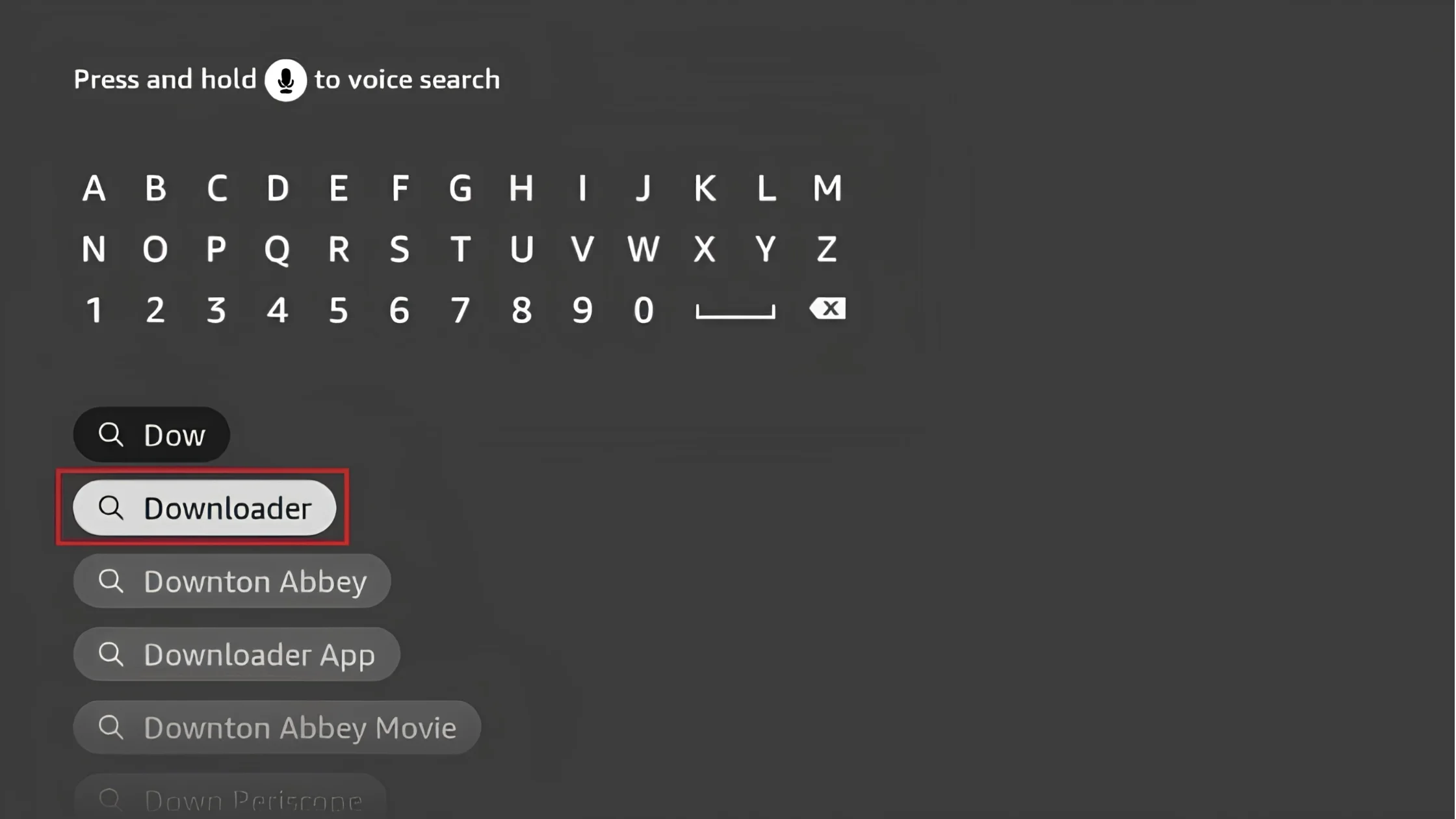
Install Downloader App
- Go to the Amazon App Store
- Search for Downloader
- Click Download then Open
2
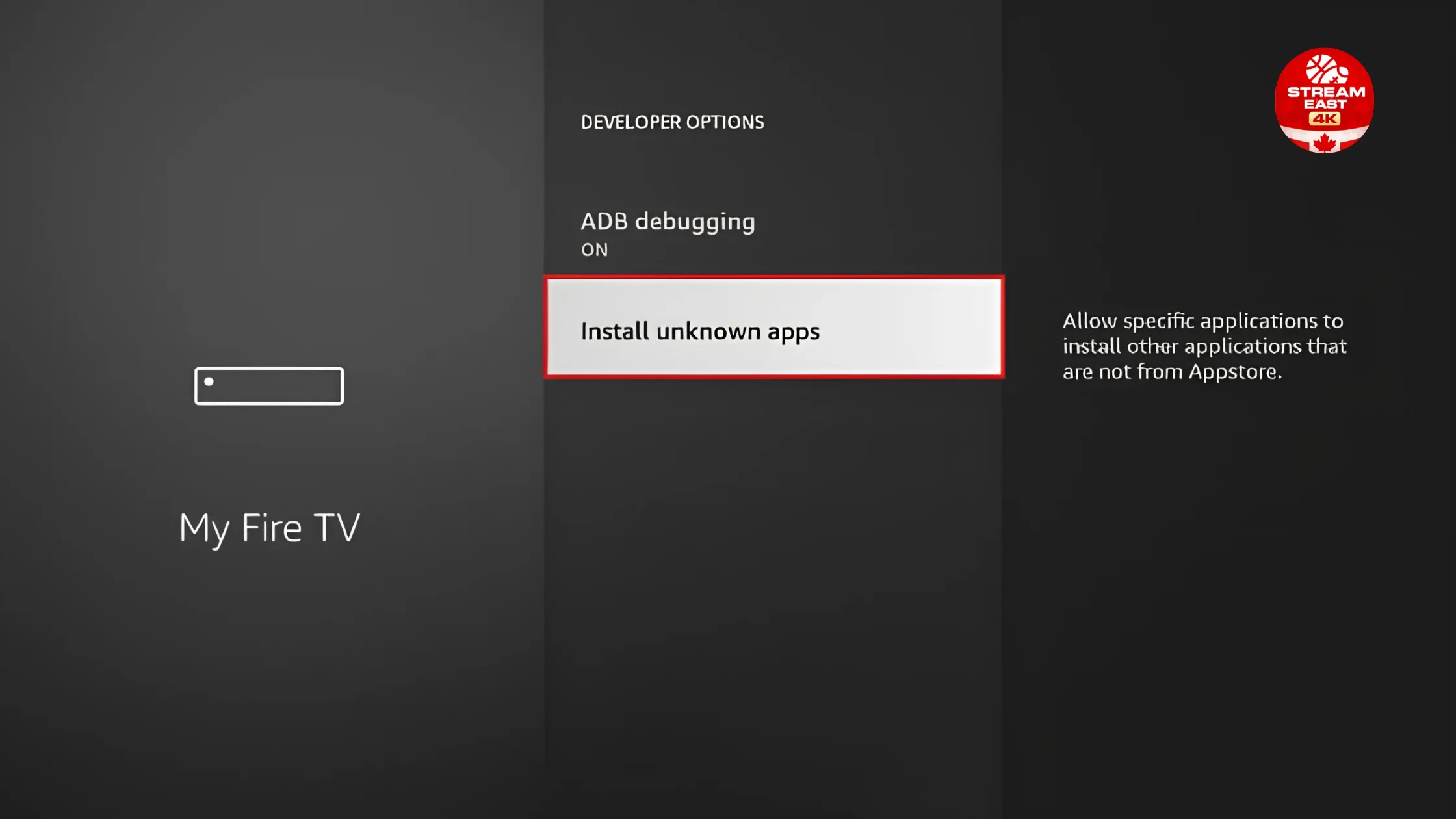
Enable Apps from Unknown Sources
- Go to Settings → My Fire TV
- Select Developer Options
- Enable Apps from Unknown Sources
3
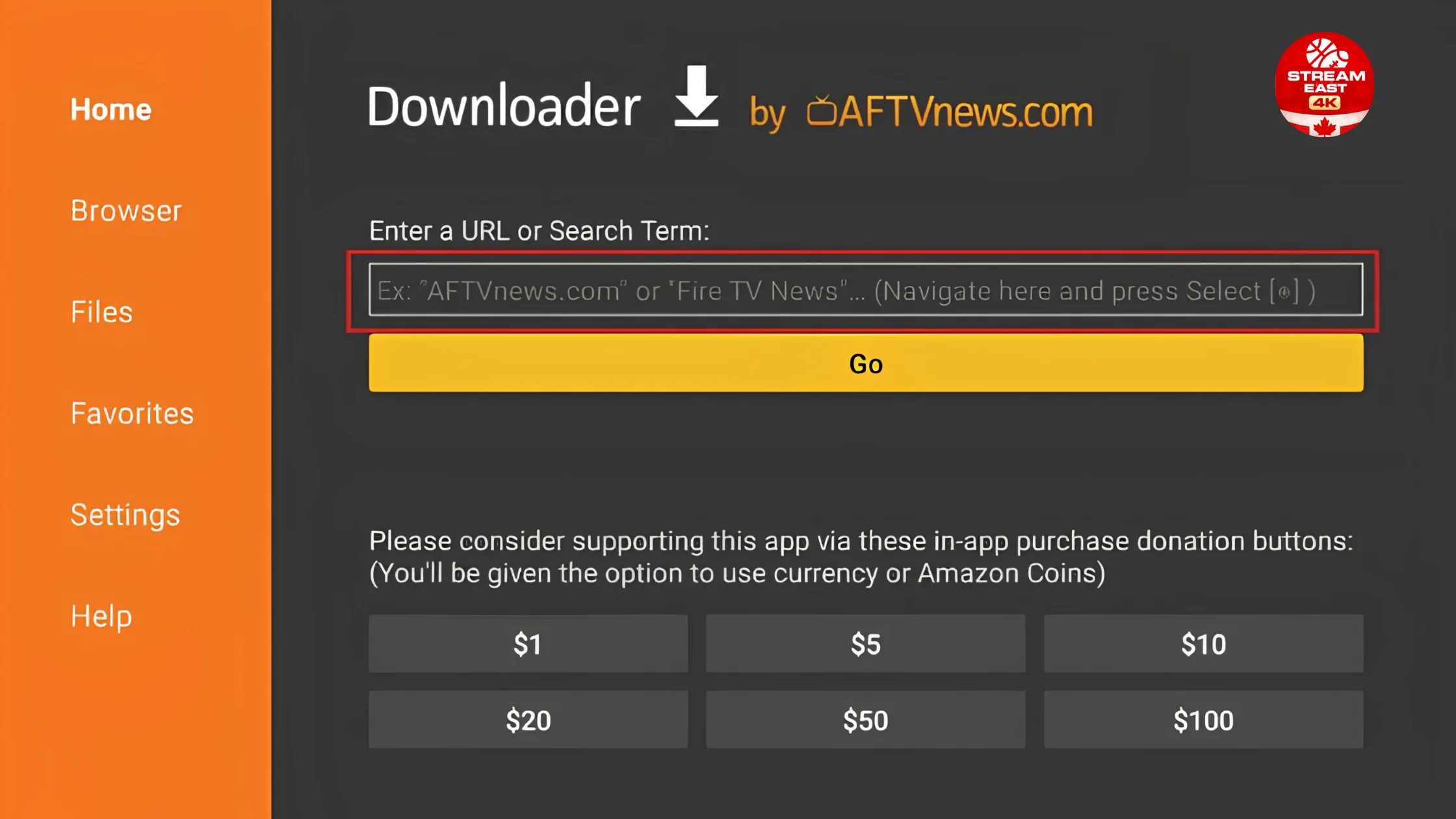
Download IPTV Smarters Pro
- Open Downloader
- Enter the code below:
🔢 Code: 6468112 📋 tap to copy
- Click Go and wait for download
4
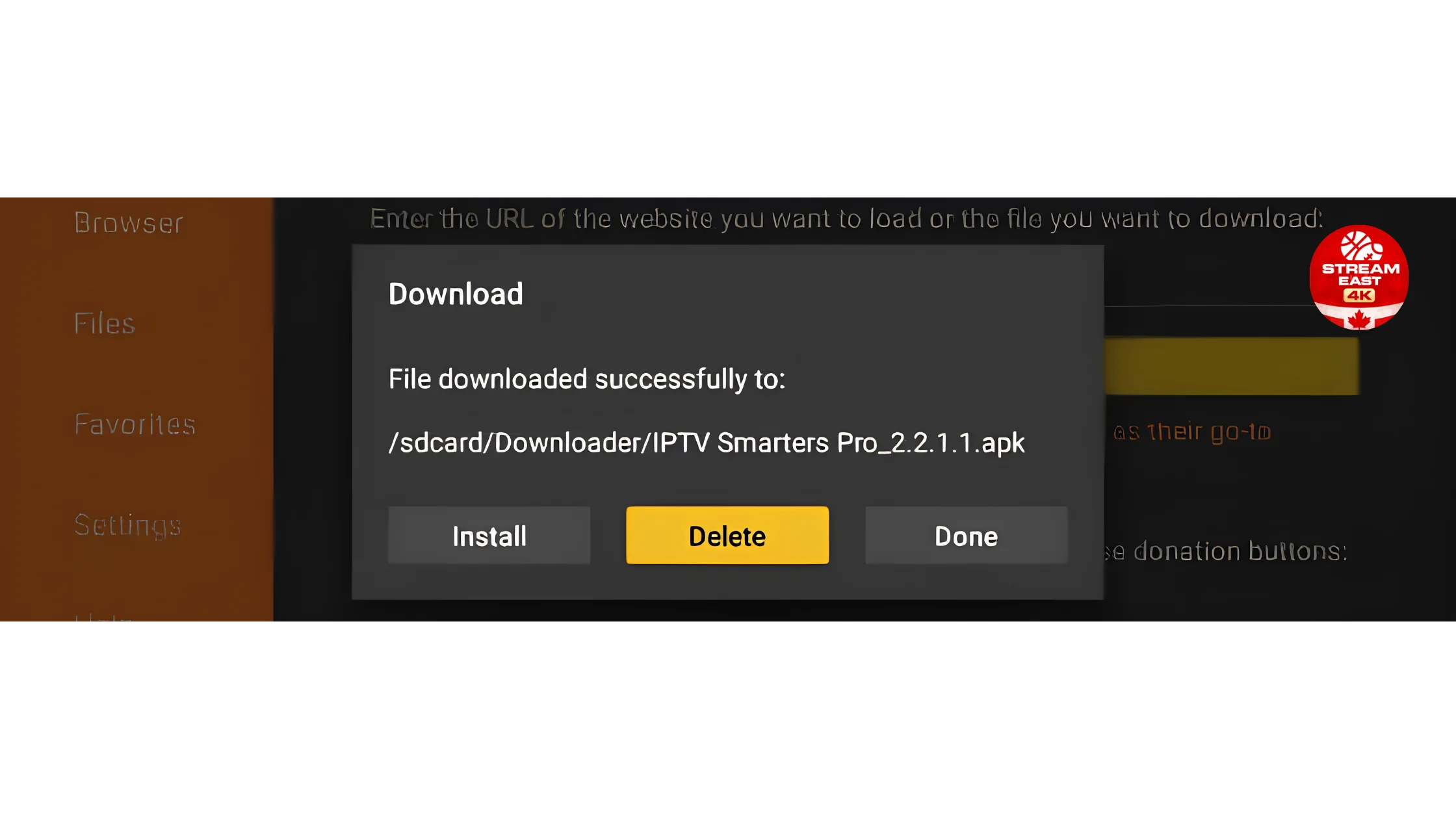
Install the App
- Click Install and wait
- Click Done or Open
5
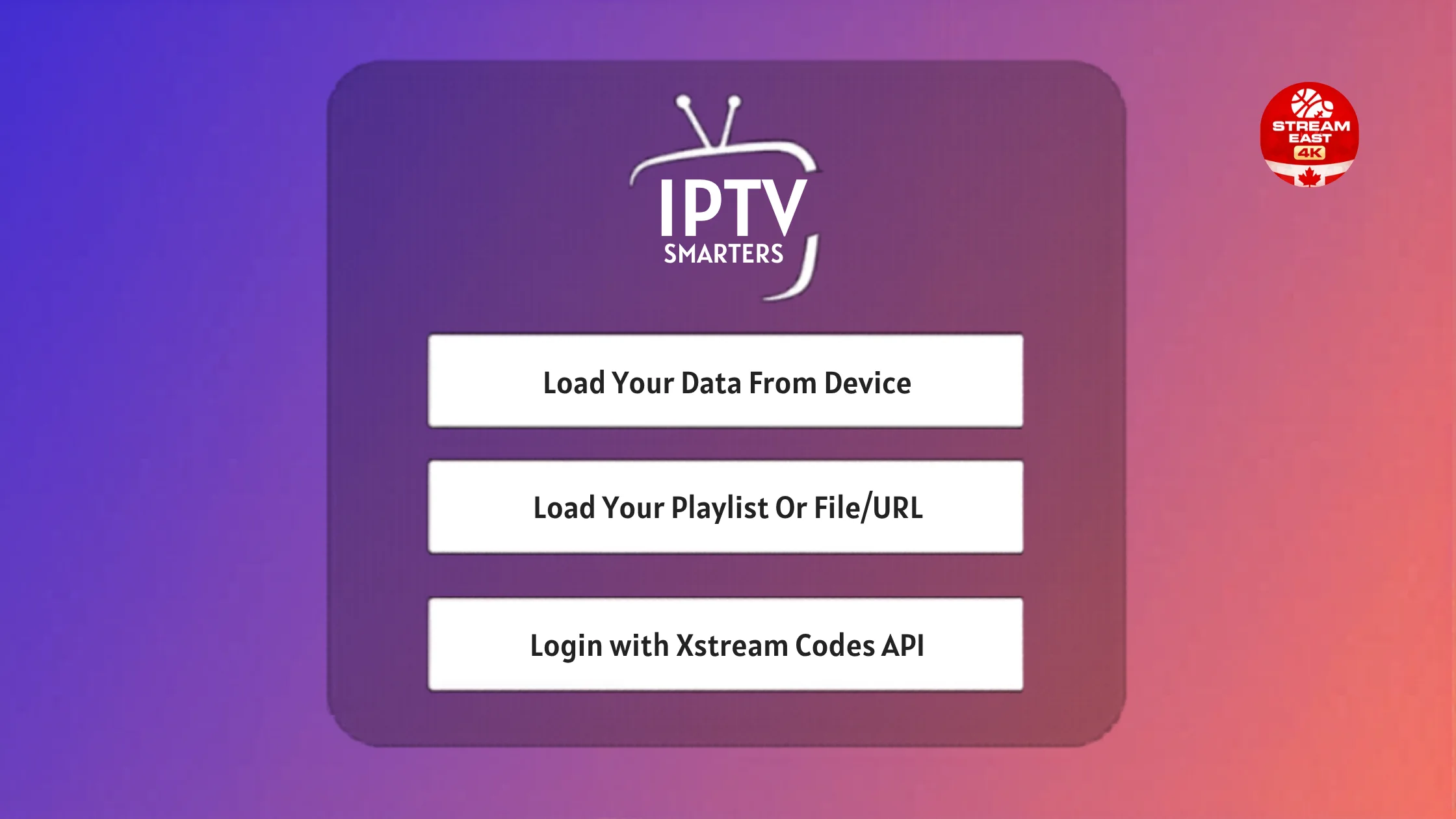
Open & Login to IPTV Smarters
- Launch app and accept terms
- Choose your login method:
Option 1 · Recommended
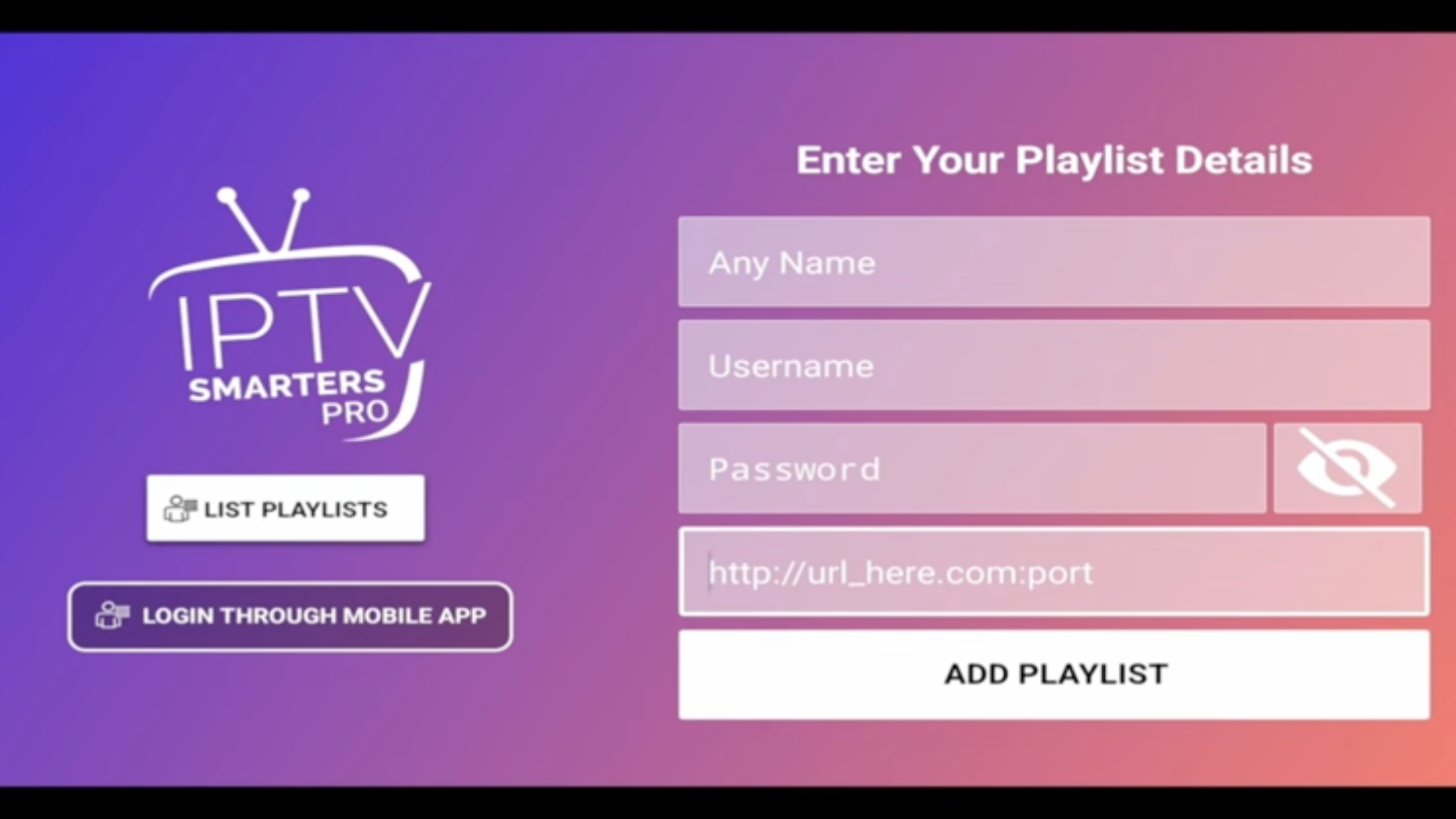
🔑 Xtream Codes API
Username
Password
Server URL
⭐ Auto-loads channels + VOD + EPG
Option 2
🔗 M3U Playlist
Paste your M3U URL
🧠 Beginner Tips
Use Xtream Codes — includes EPG & VOD automatically
Restart the app if channels don’t load on first try
Use stable Wi-Fi for smooth 4K streaming
TiviMate is a great alternative IPTV app
👽 Guide 2 of 10
How to Install IPTV on Android TV / TV Box
📱 Apps: IPTV Smarters / TiviMate
🔢 Code:
6468112📺 Android TV · TV Box · Nvidia Shield
🎥 Video Tutorial
How to Install IPTV on Android TV / Box
📝 Step-by-Step Installation Guide
1
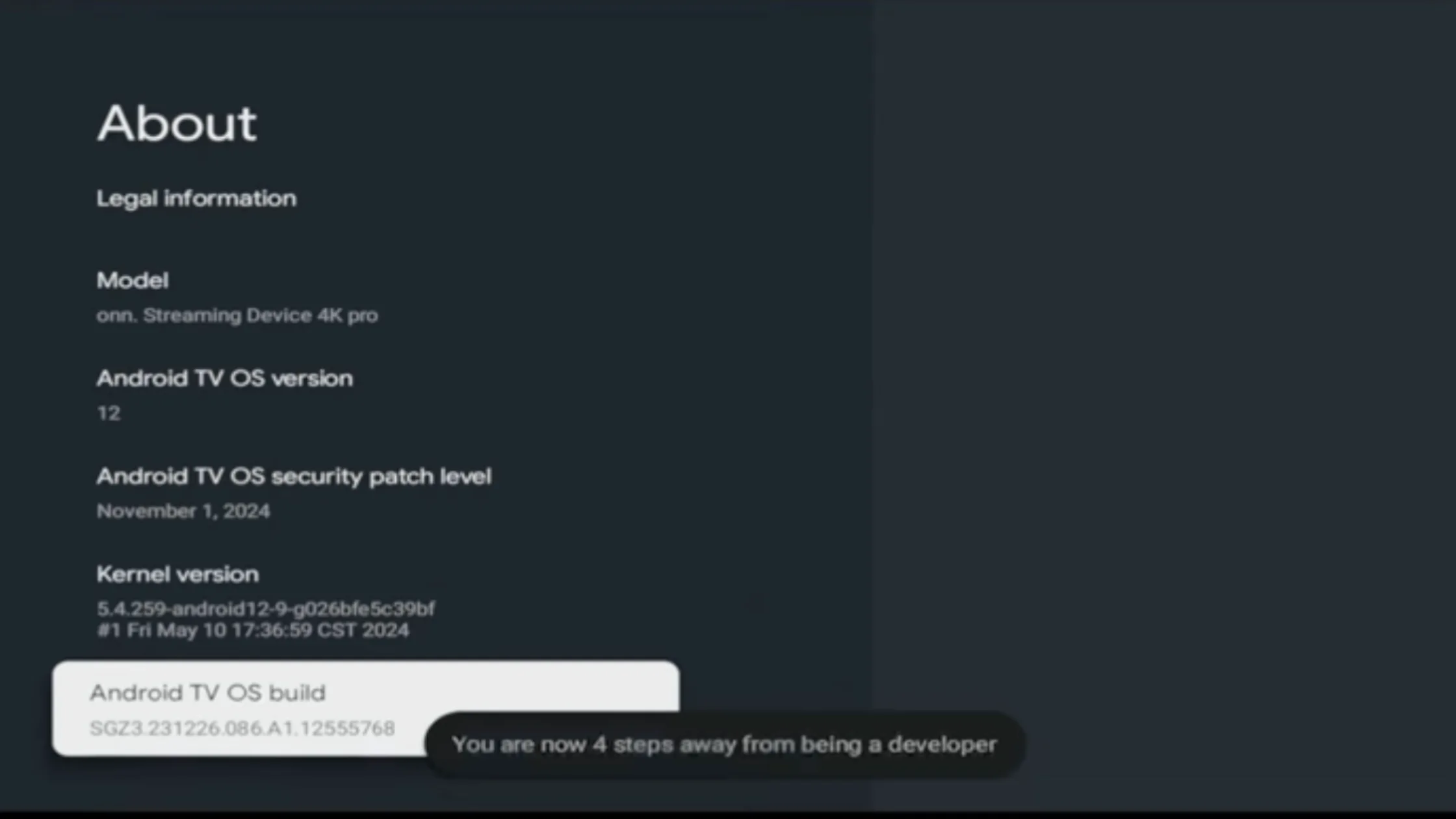
Enable Developer Mode
- Go to Settings → Device Preferences → About
- Scroll to Build Number
- Click it 7 times to enable developer mode
2
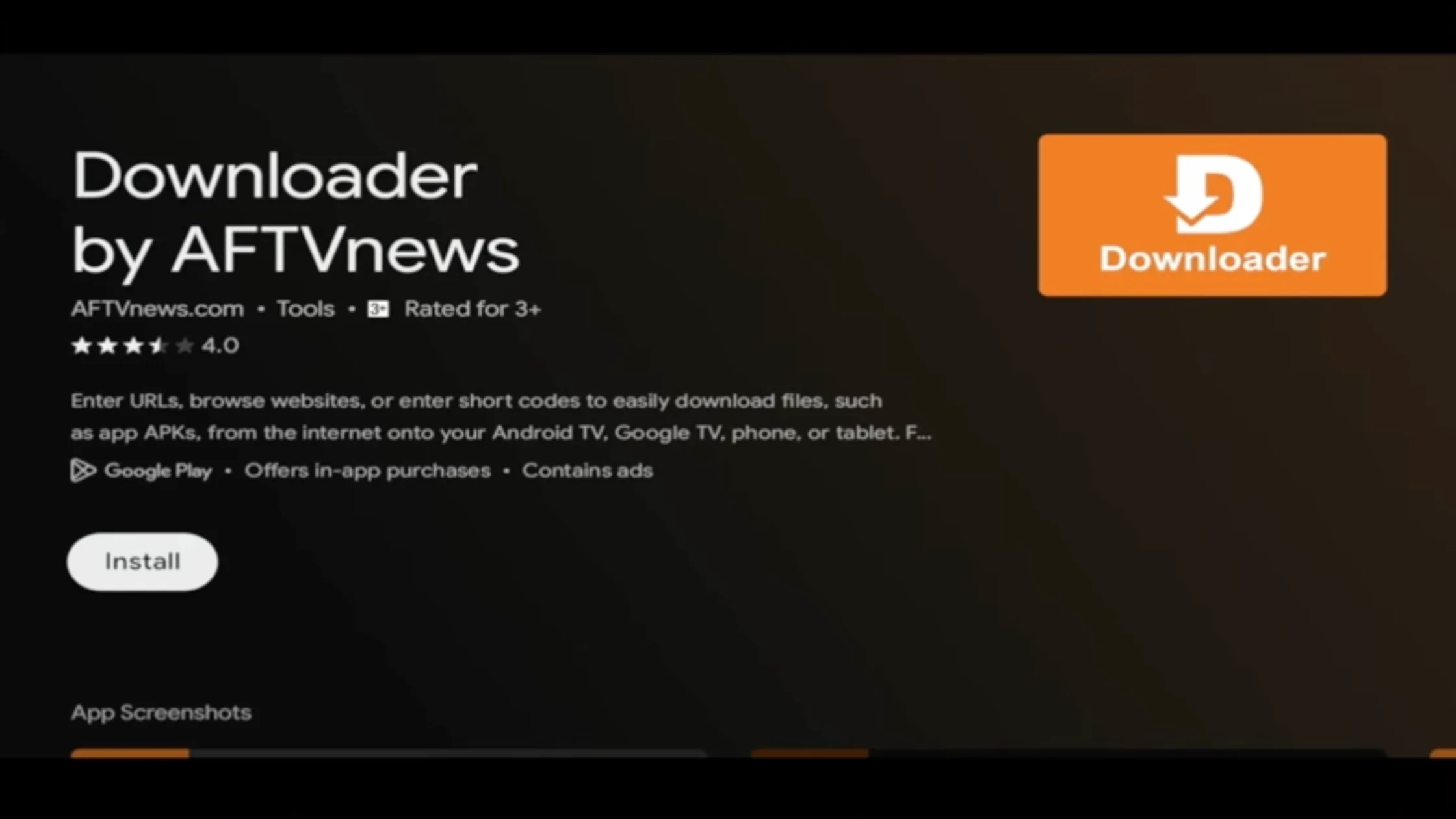
Install Downloader App
- Open Google Play Store
- Search for Downloader
- Install and open
3
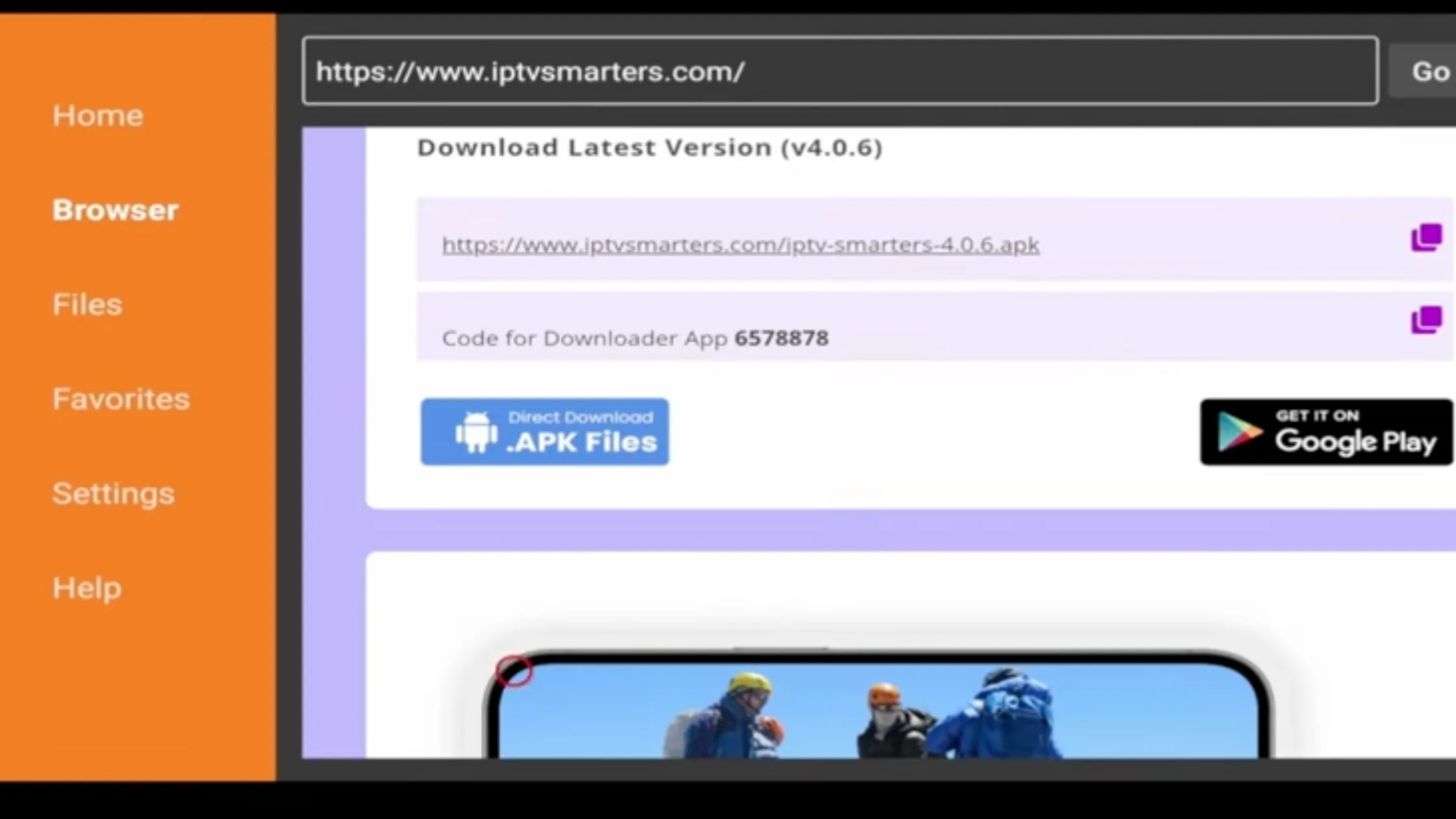
Download IPTV App
- Open Downloader
- Enter code:
🔢 6468112 📋 copy
- Click Go and wait
4
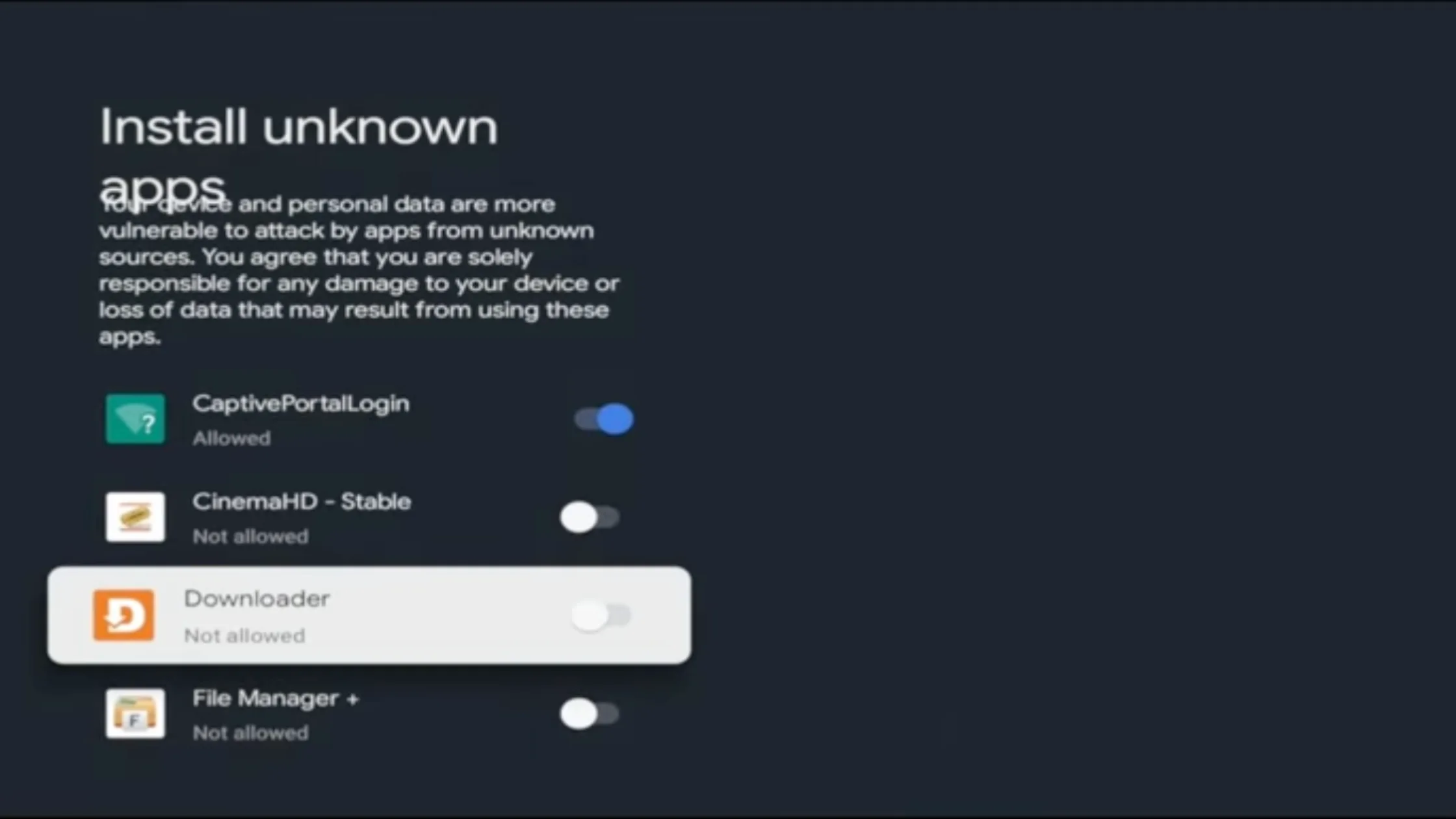
Allow Unknown Sources
- Go to Settings → Security & Restrictions
- Enable Unknown Sources
5
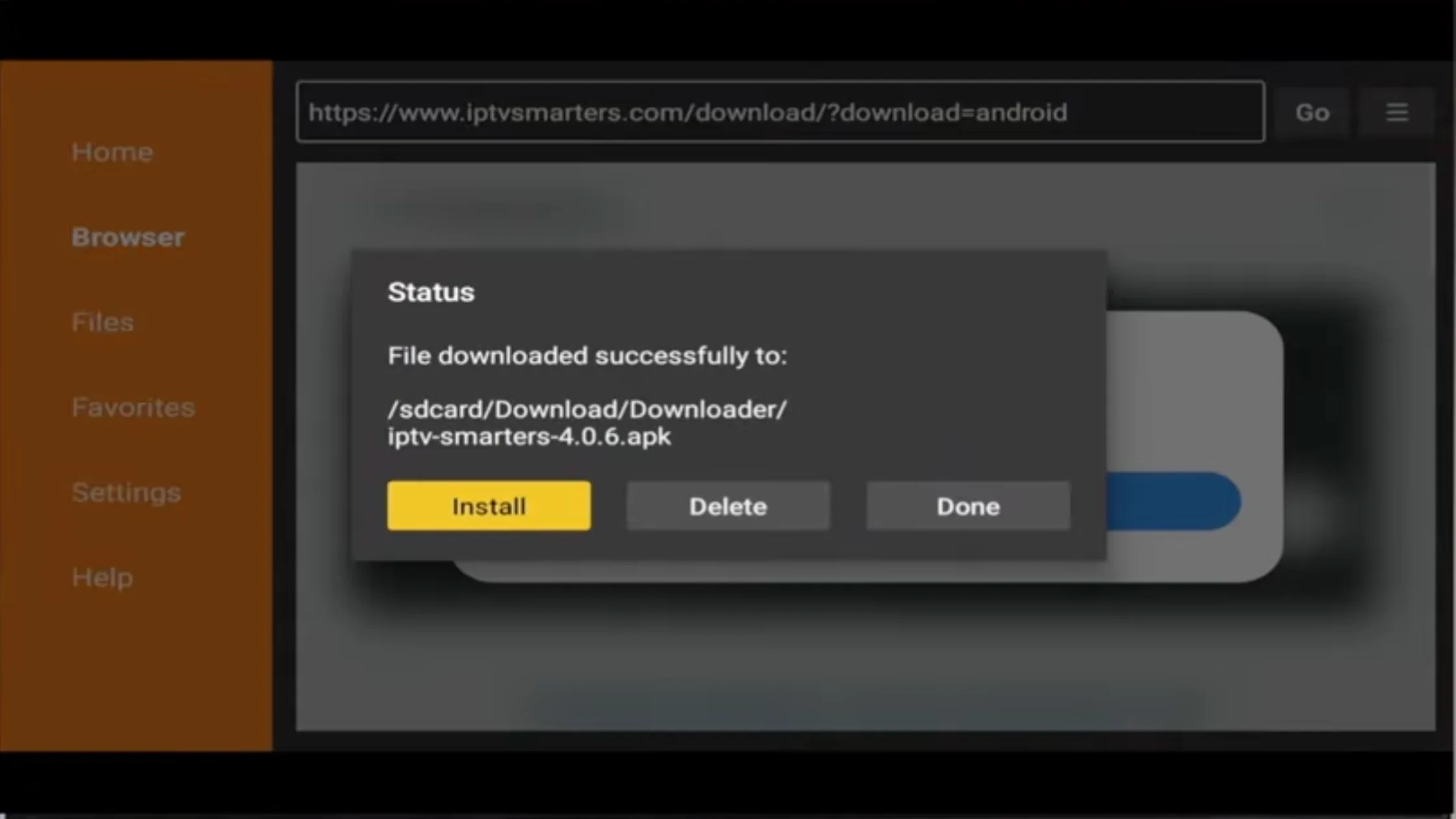
Install IPTV Smarters
- Click Install and wait
- Open the app
6
Login with Xtream Codes
- Choose Xtream Codes Login
- Enter Username · Password · Server URL
- Credentials provided after activation
📦 Guide 3 of 10
How to Setup IPTV on Formuler / Dreamlink
📱 App: MyTVOnline 2 / 3
📡 MAC Address system
🌐 Portal URL activation
⚠️
This device works differently. You must share your MAC address with support. You will receive a Portal URL — no username or password required.
🎥 Video Tutorial
How to Setup IPTV on Formuler / Dreamlink
📝 Step-by-Step Installation Guide
1
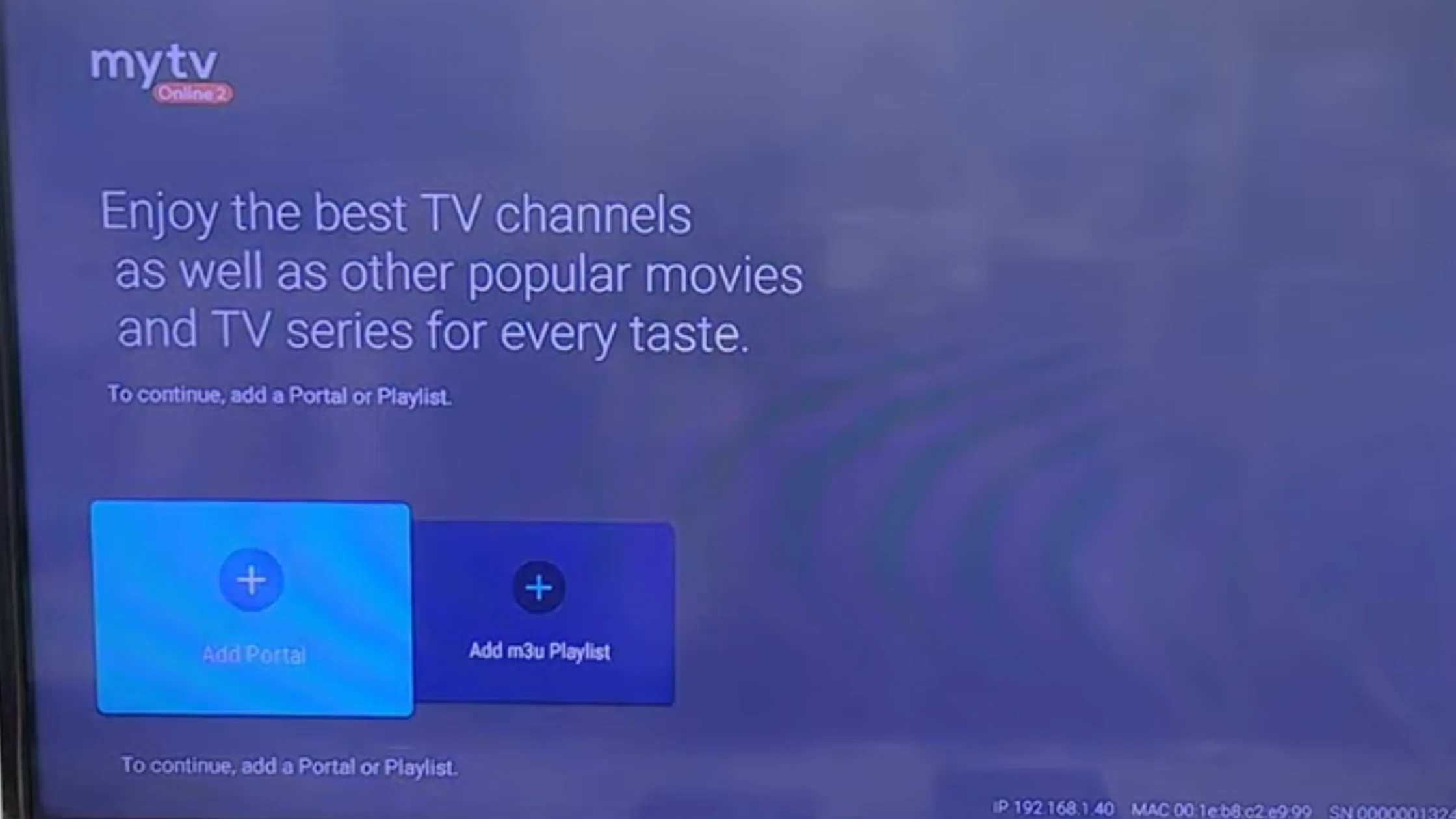
Open MyTVOnline App
- Turn on your Formuler / Dreamlink
- Open MyTVOnline (version 2 or 3)
- Go to the main screen
2
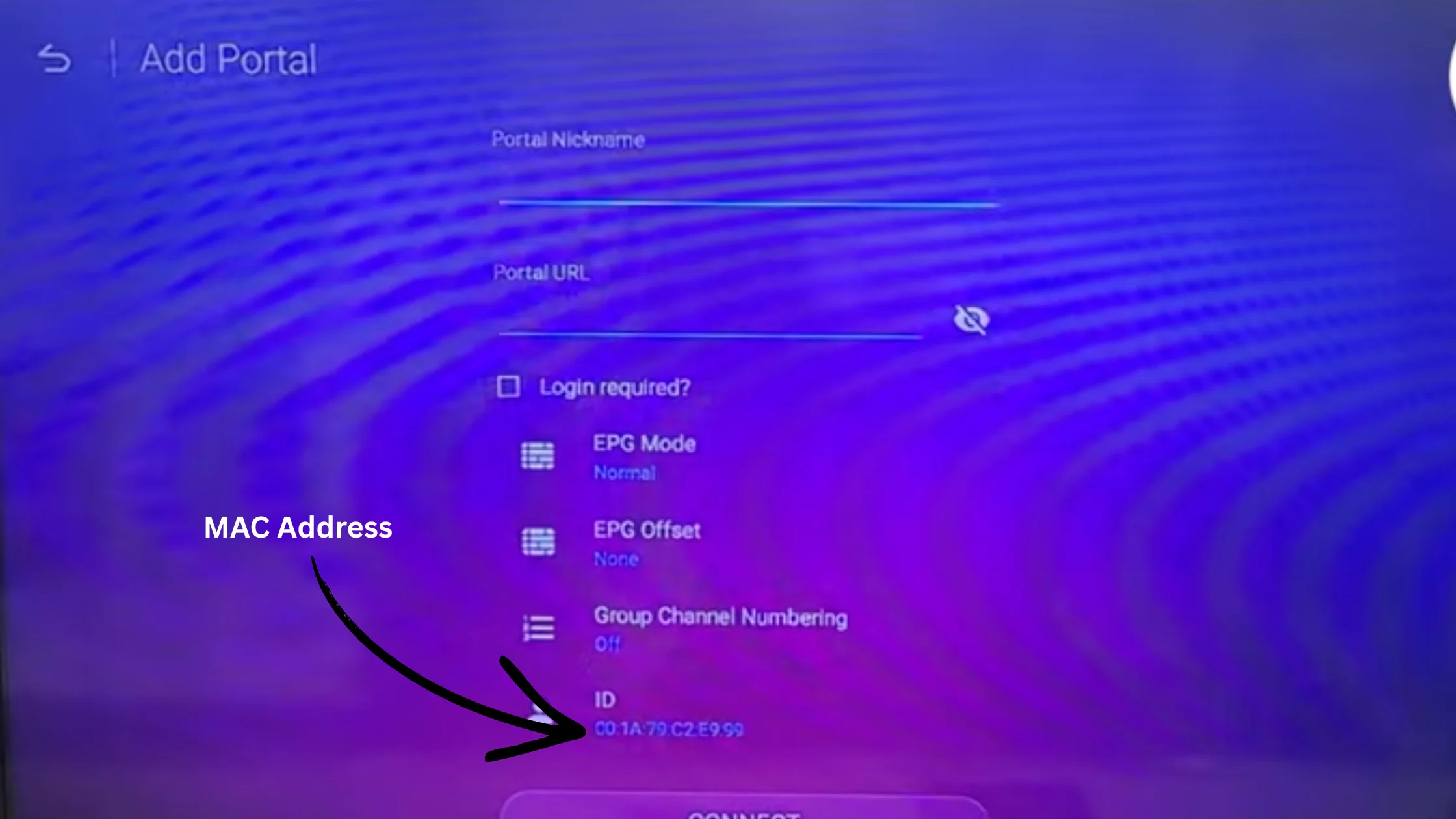
Find & Share Your MAC Address
- Look in Settings or top corner of screen
- Copy your MAC address (00:1A:79:…)
- Send it to StreamEast 4K support
📌 MAC address is required to activate your subscription
3
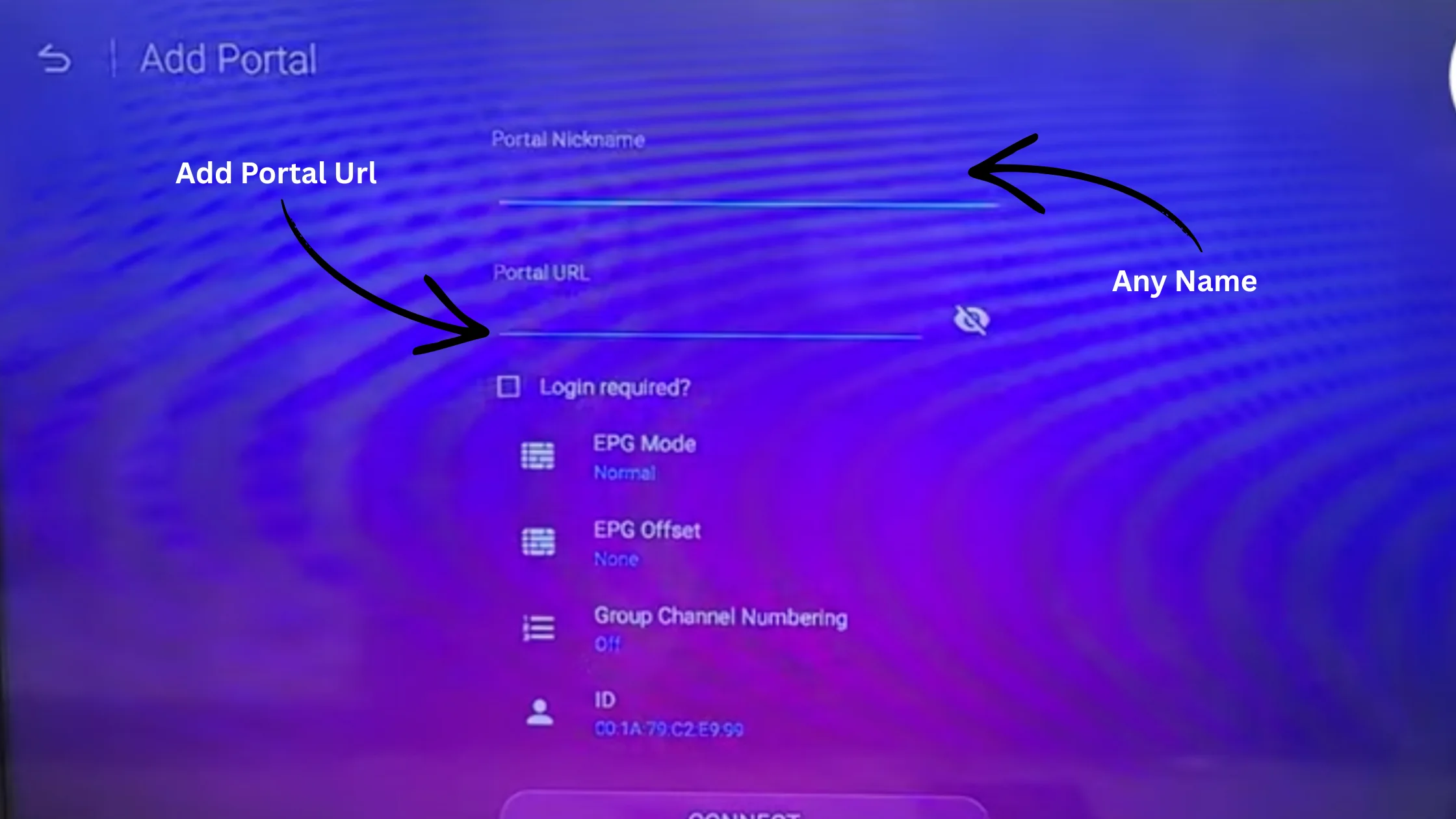
Add IPTV Portal URL
- Go to Menu → Portals / Connections
- Click Add Portal
- Portal Name: StreamEast 4K
- Paste your Portal URL (from support)
- Click Connect
4
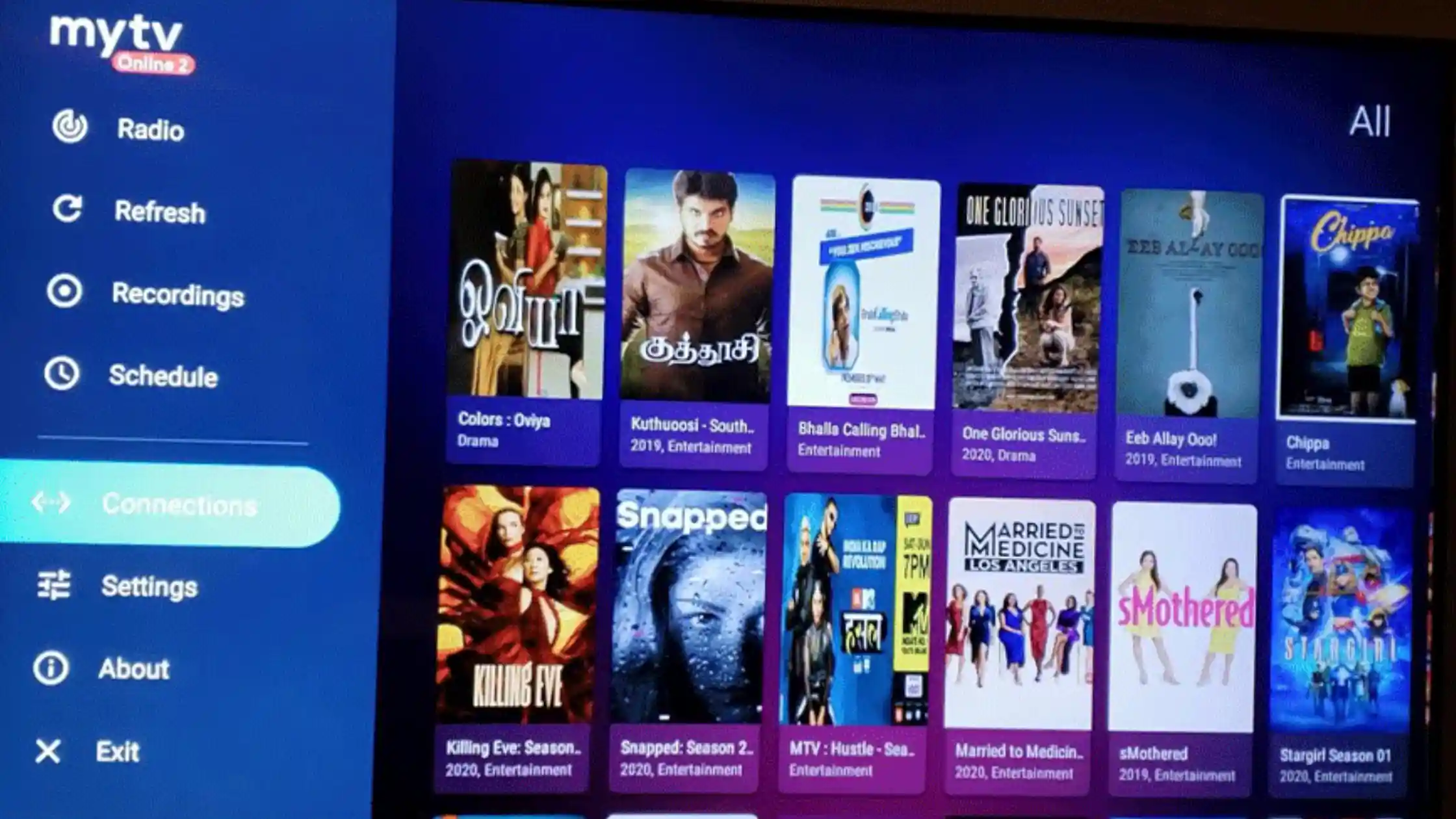
Connect & Load Channels
- Wait for connection
- Channels load automatically
- Access Live TV · Movies · Series · EPG
📺 Guide 4 of 10
How to Install IPTV on Smart TV (Samsung / LG)
📱 App: IPTV Smarters Pro
🔄 Alt: Smart IPTV · IBO Player
📺 Samsung · LG · Vizio · Hisense
🎥 Video Tutorial
How to Install IPTV Smarters Pro on Smart TV
📝 Step-by-Step Installation Guide
1
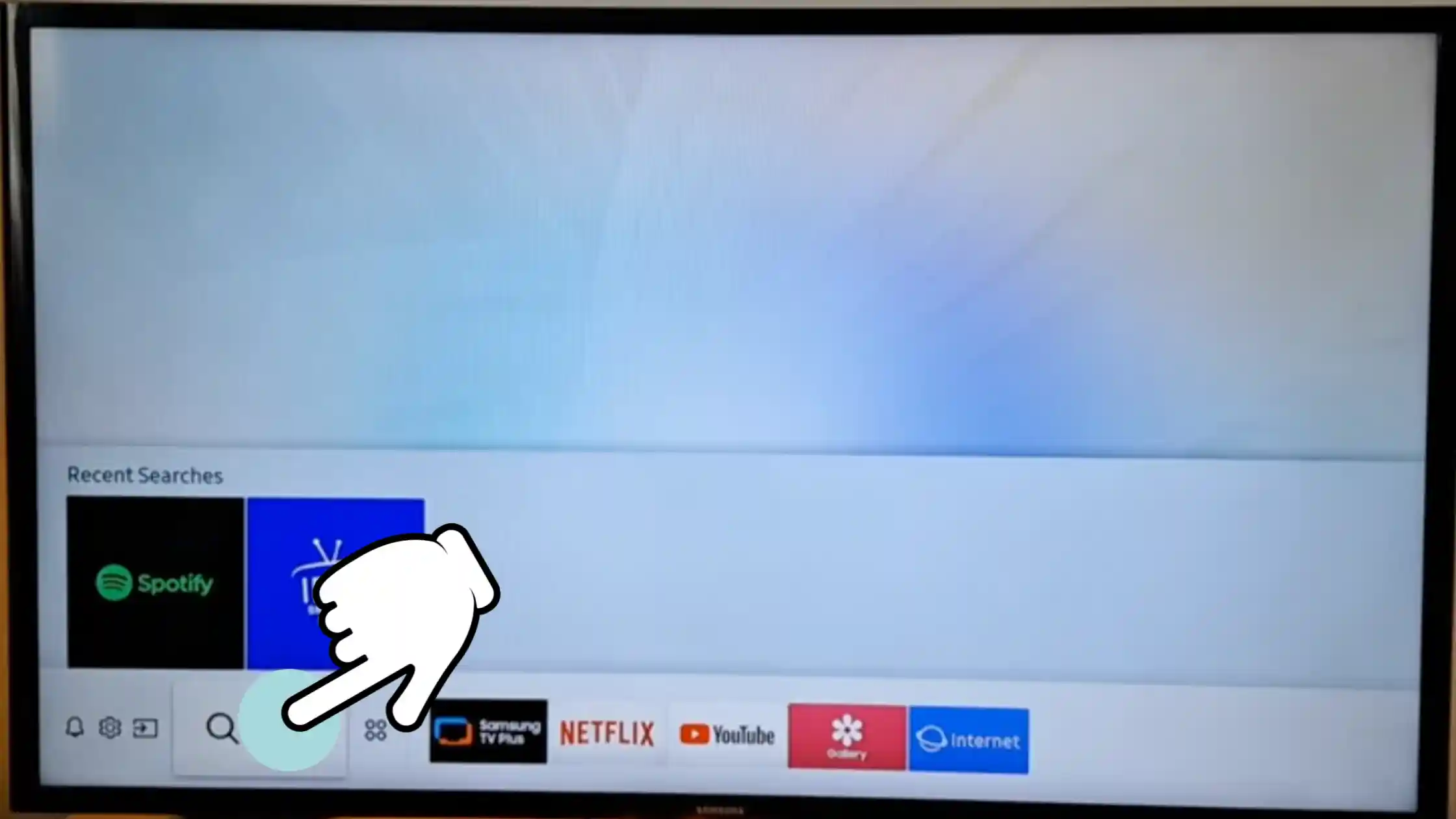
Open TV App Store
- Samsung → Smart Hub / Apps
- LG → LG Content Store
- Go to the search bar
2
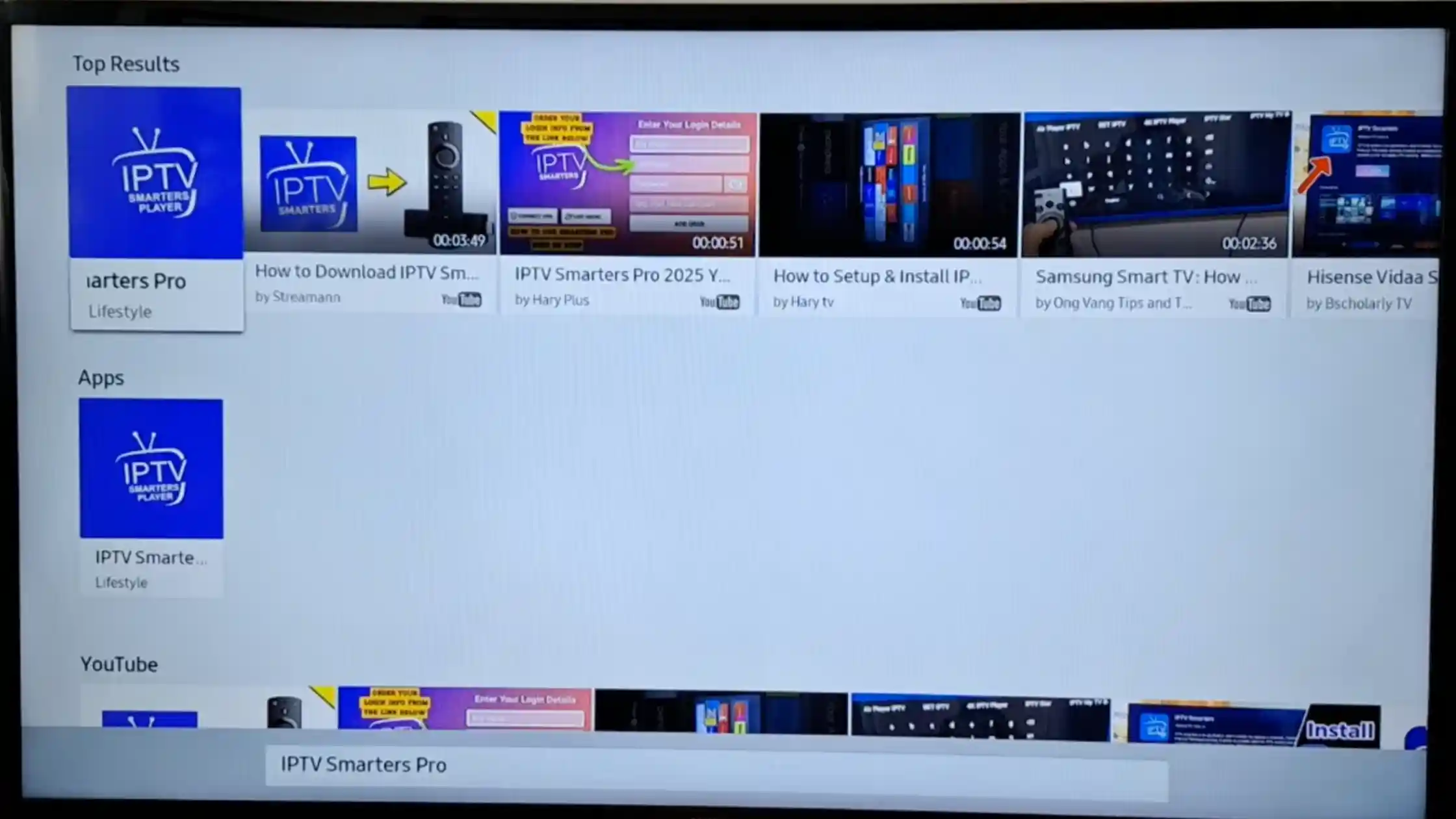
Search & Install IPTV App
- Search: IPTV Smarters Pro
- Alternatives: Smart IPTV, IBO Player
- Click Install then open
📌 Availability varies by region and TV model
3
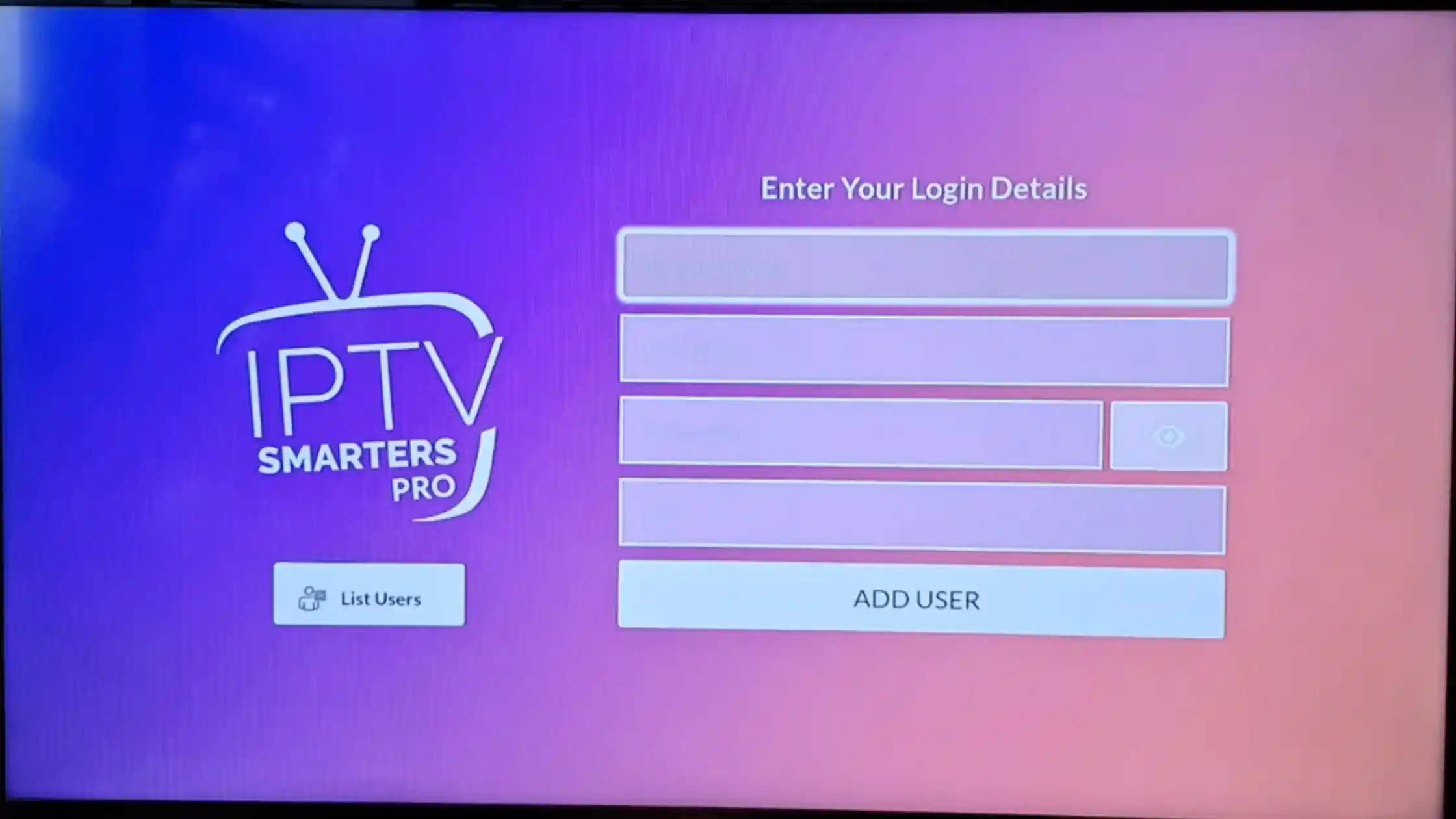
Login to IPTV
- Open IPTV Smarters Pro
- Accept terms
- Choose Xtream Codes API
- Enter Username · Password · Server URL
4
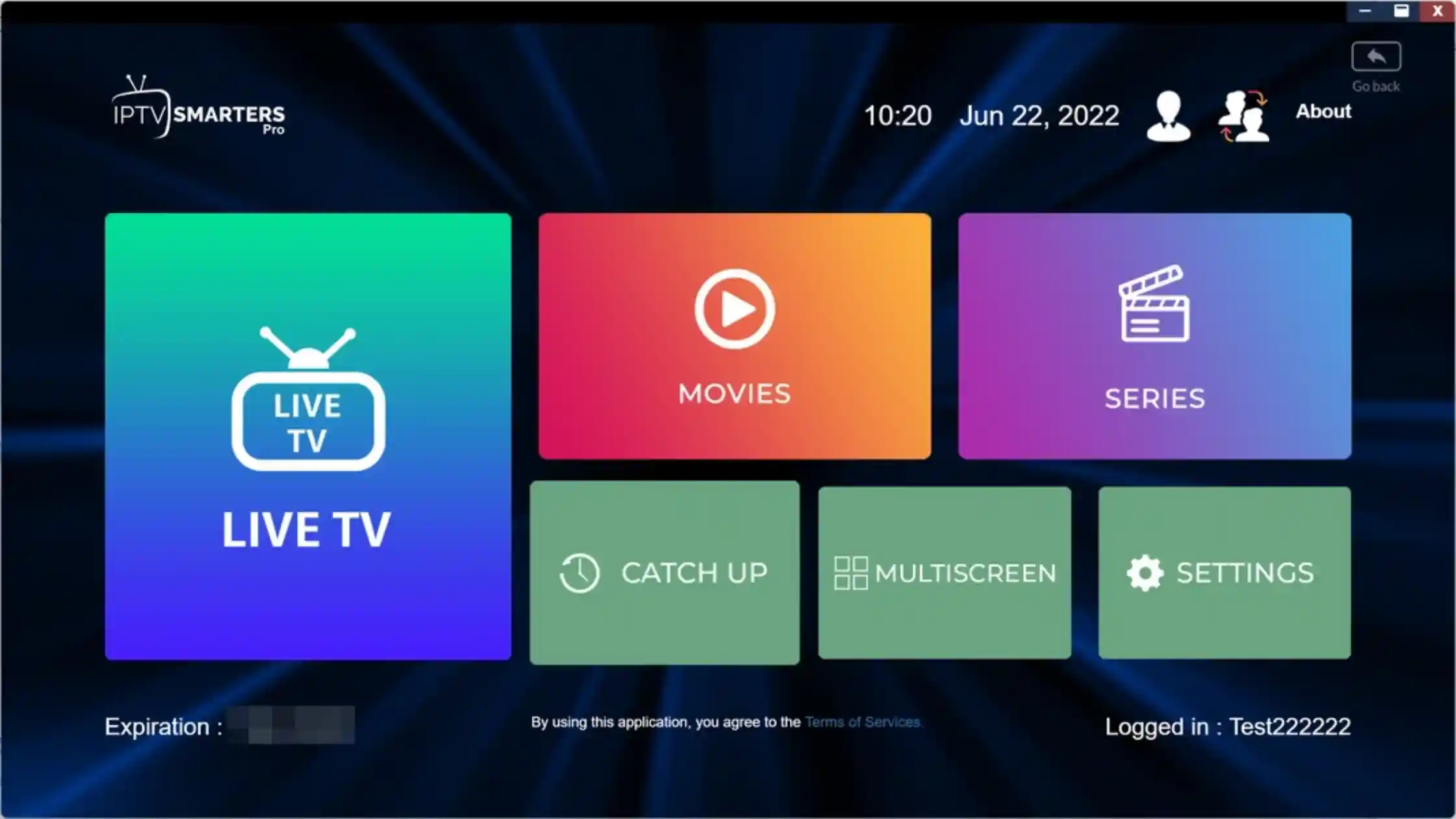
Start Streaming
- Channels load automatically after login
- Access Live TV · VOD · Sports · EPG
📡 Guide 5 of 10
How to Install IPTV on Roku
💻 Requires a PC
🌐 my.roku.com account
🔢 Channel code:
iptvsmarters⚠️
Roku has limitations compared to Android. This process requires a PC and your Roku account at my.roku.com
🎥 Video Tutorial
How to Install IPTV Smarters on Roku
📝 Step-by-Step Installation Guide
1
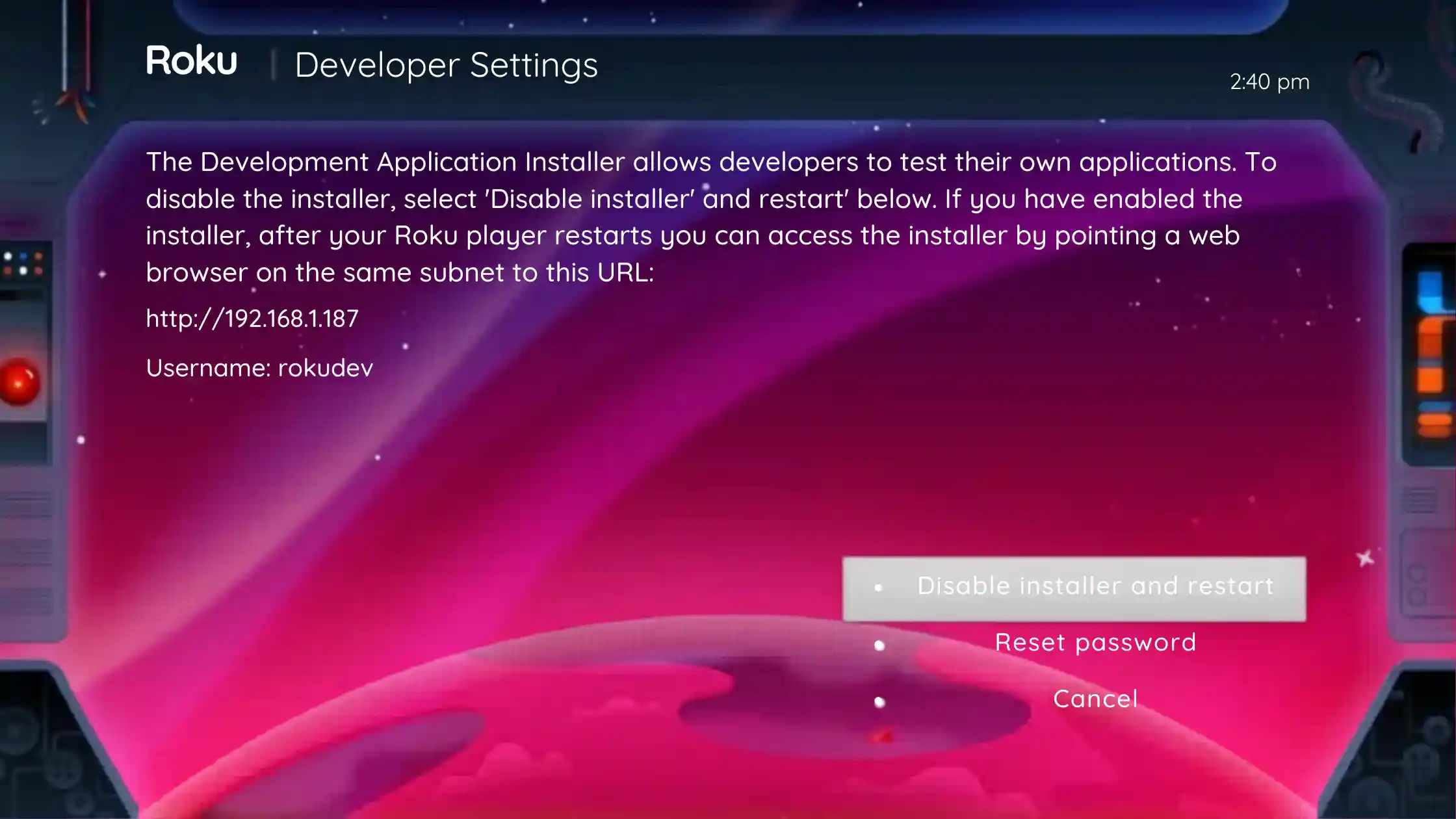
Activate Developer Mode
Press this sequence on your Roku remote:
Home×3 → Up×2 → Right → Left → Right → Left → Right 📋
- Click Enable Installer
- Set a developer password (min 4 chars)
- Note your Roku IP address
2
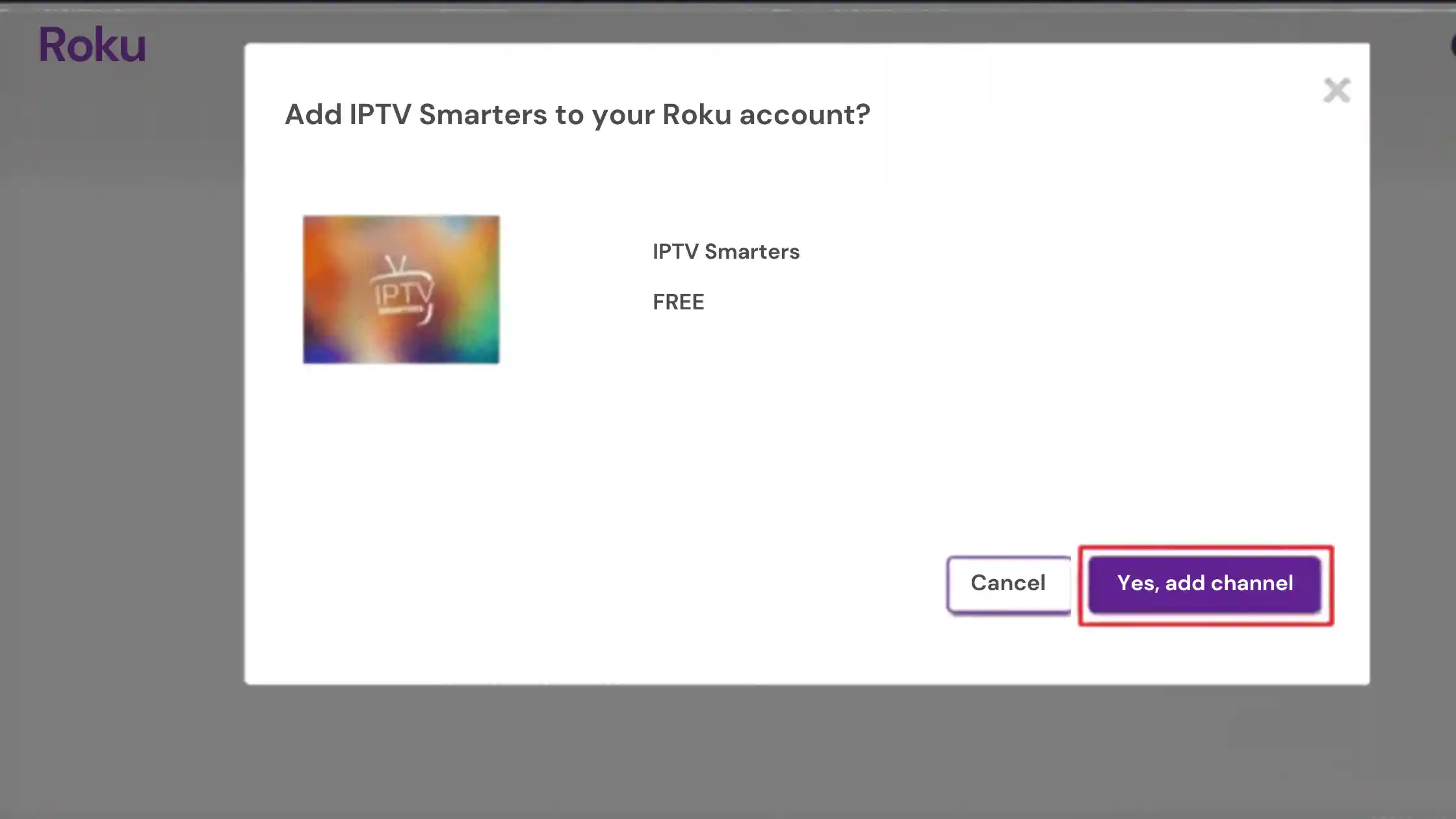
Add Channel via Roku Account
- Go to my.roku.com and login
- Click Add Channel with a Code
- Enter:
iptvsmarters - Click Add Channel → Confirm
3
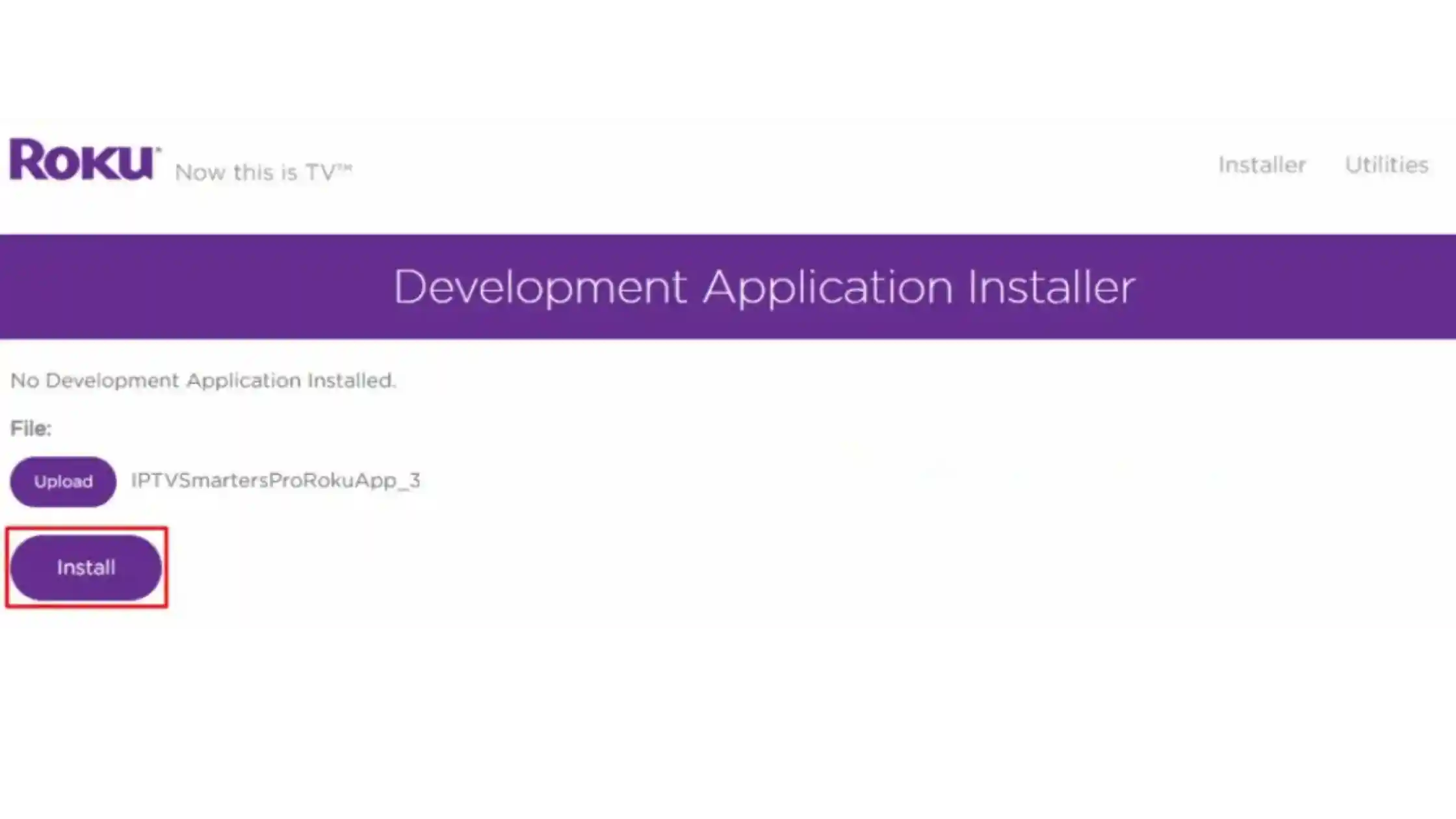
Download ZIP on PC & Upload to Roku
- Download official IPTV Smarters ZIP on your PC
- Open browser → type your Roku IP address
- Login: rokudev / your password
- Click Upload → select ZIP → Install
⚠️ Download from official source only
4
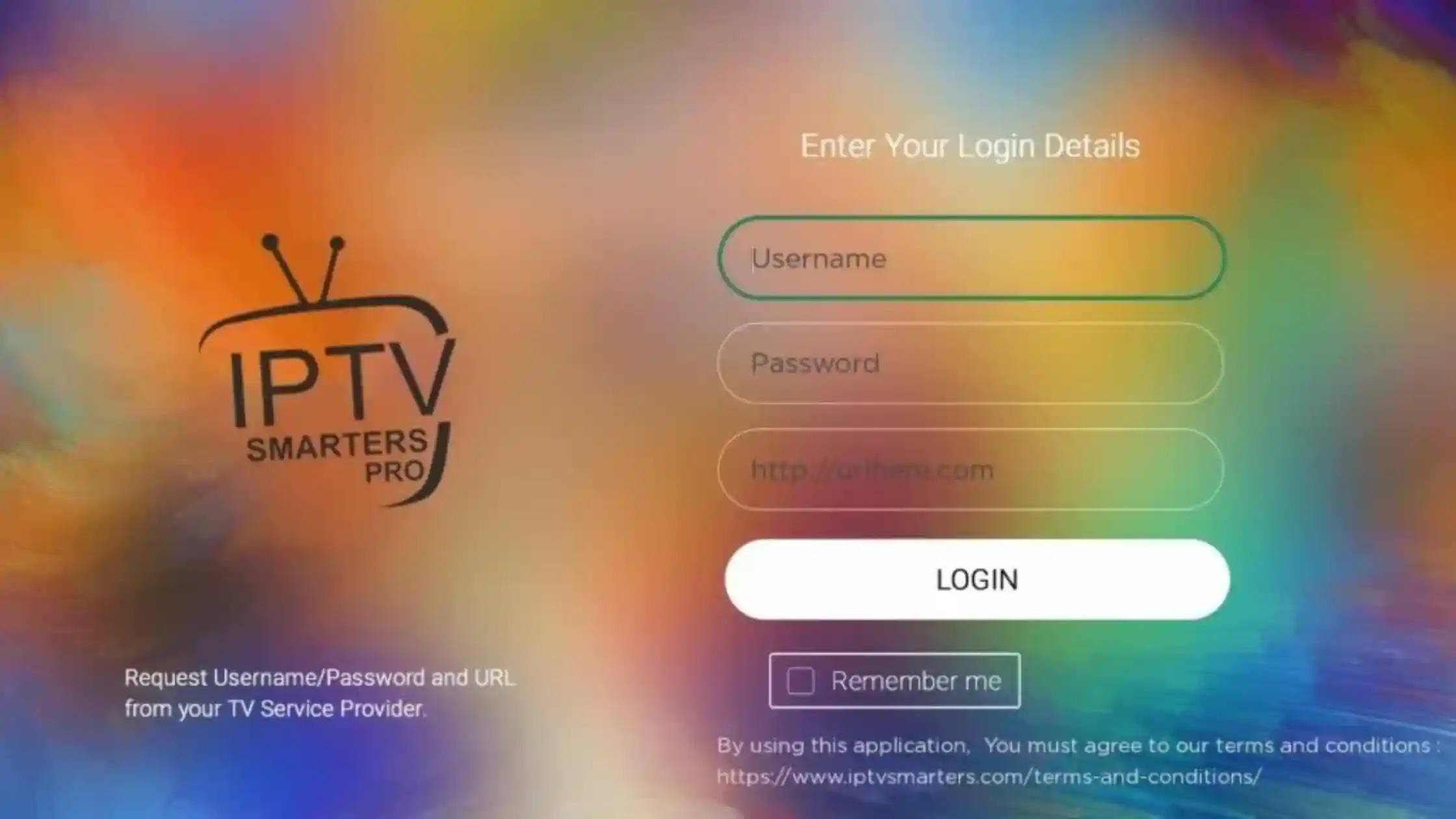
Install Complete & Login
- See Install Success
- Return to Roku Home → open IPTV Smarters
- Enter Username · Password · Server URL
- Channels, VOD and EPG load automatically
🍎 Guide 6 of 10
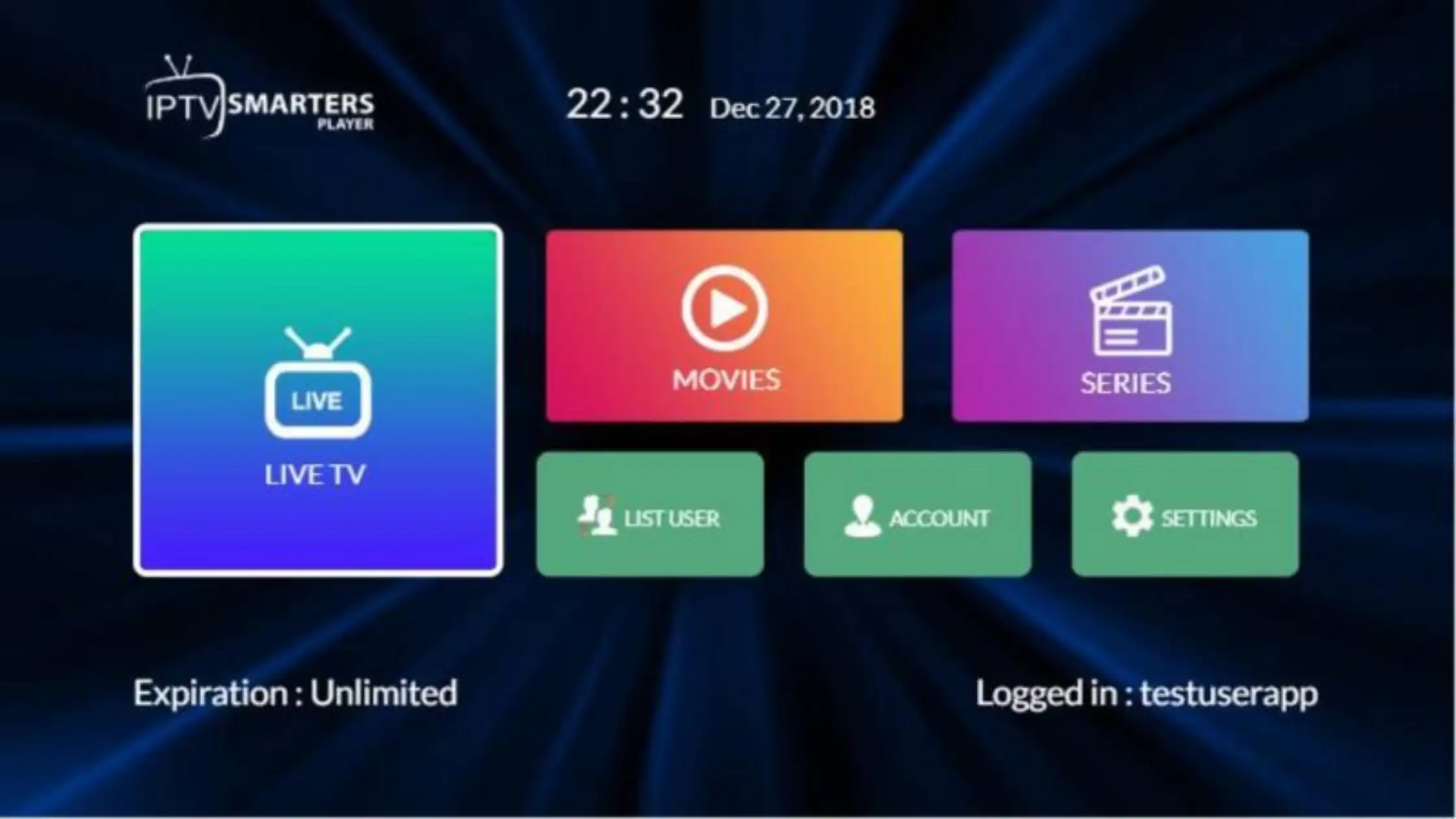
How to Install IPTV on iPhone / iPad
📱 App: IPTV Smarters Player
🍎 iPhone · iPad · Apple TV
🔑 Xtream Codes or M3U
🎥 Video Tutorial
How to Install IPTV Smarters Player on iPhone / iPad
📝 Step-by-Step Installation Guide
1
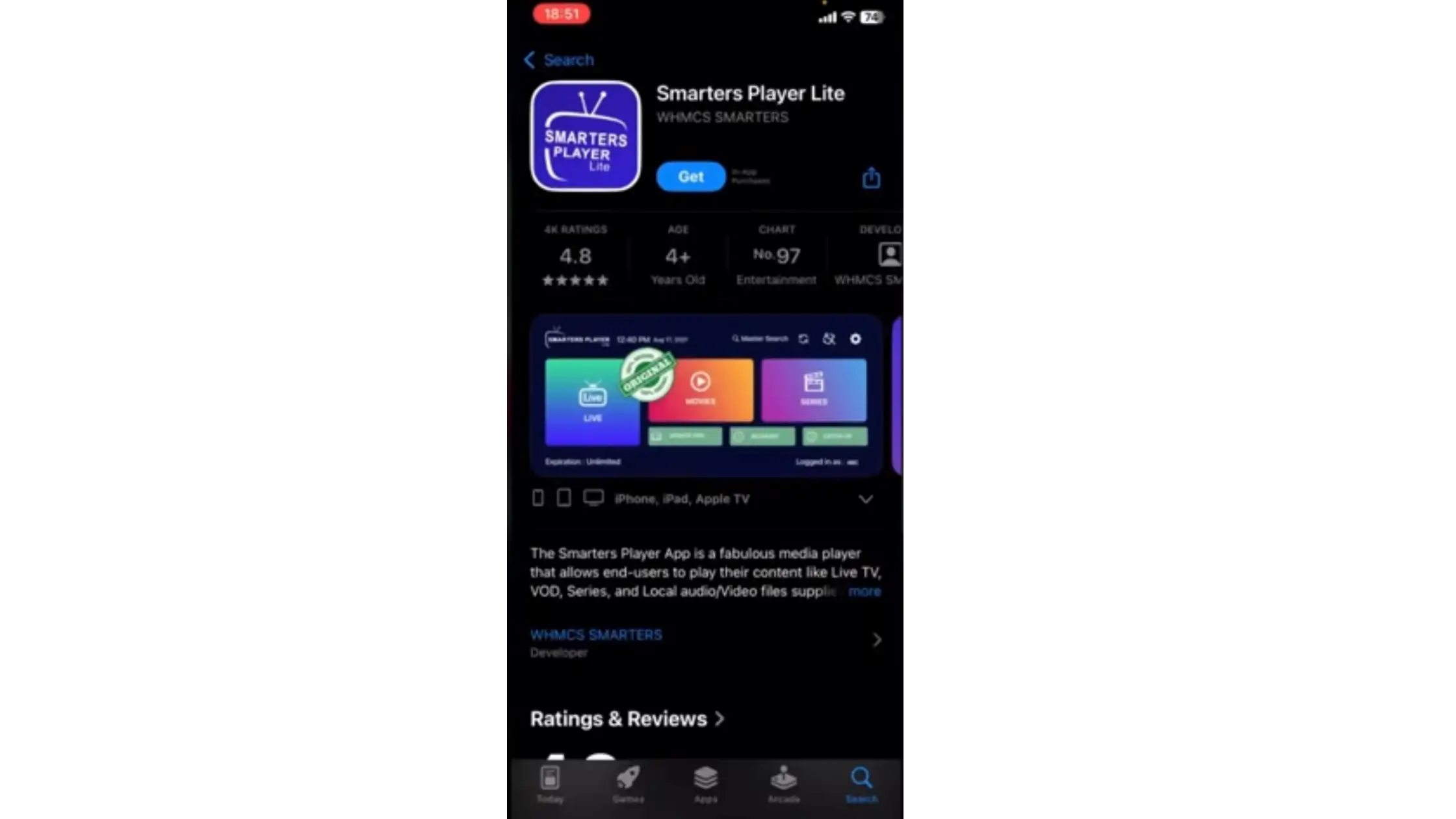
Open App Store & Search
- Open the App Store on your device
- Search: IPTV Smarters Player
- Tap Download / Get
📌 Supports both M3U and Xtream Codes streaming
2
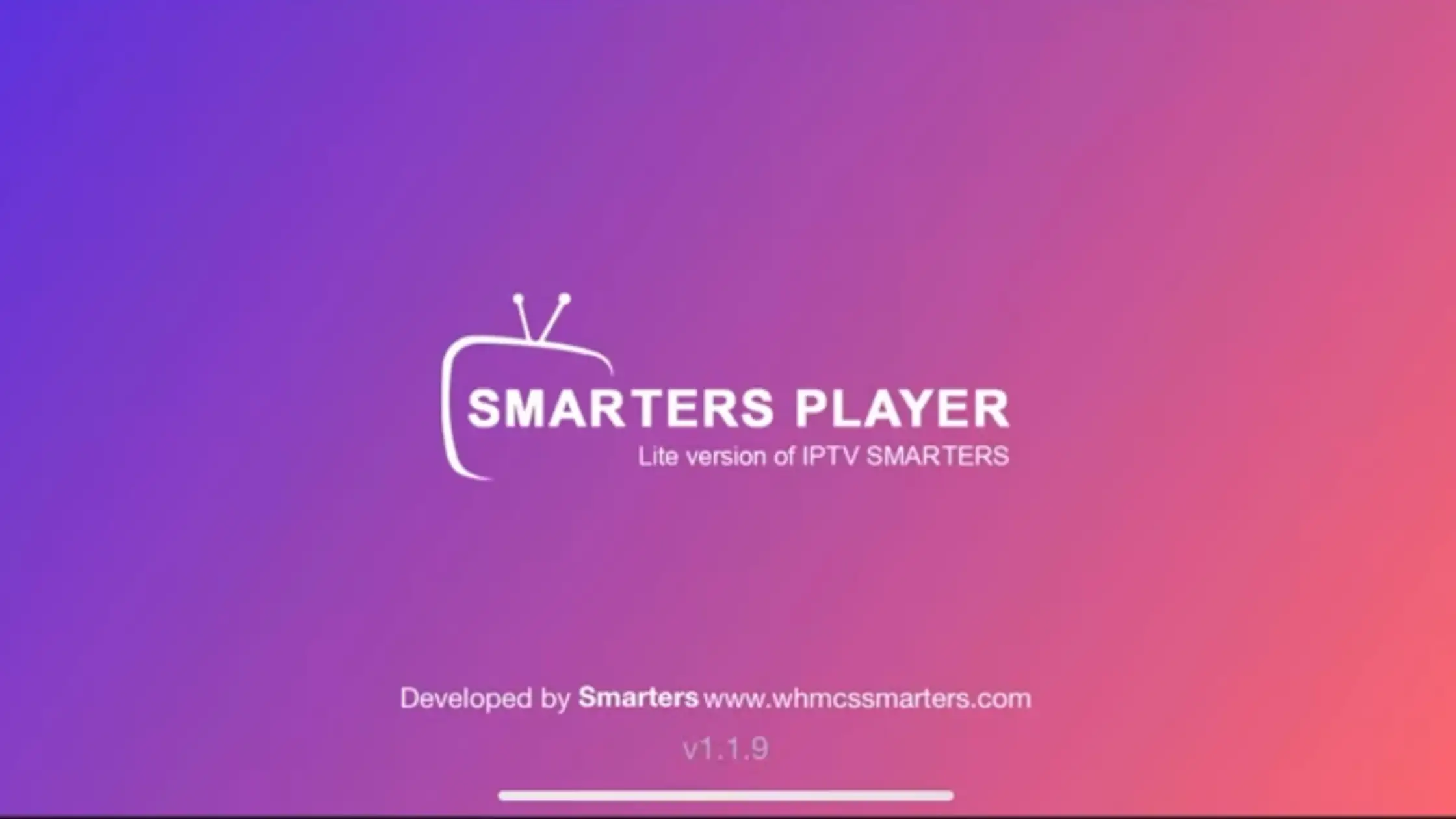
Install & Open
- Wait for installation
- Open the app
- Accept terms and permissions
3
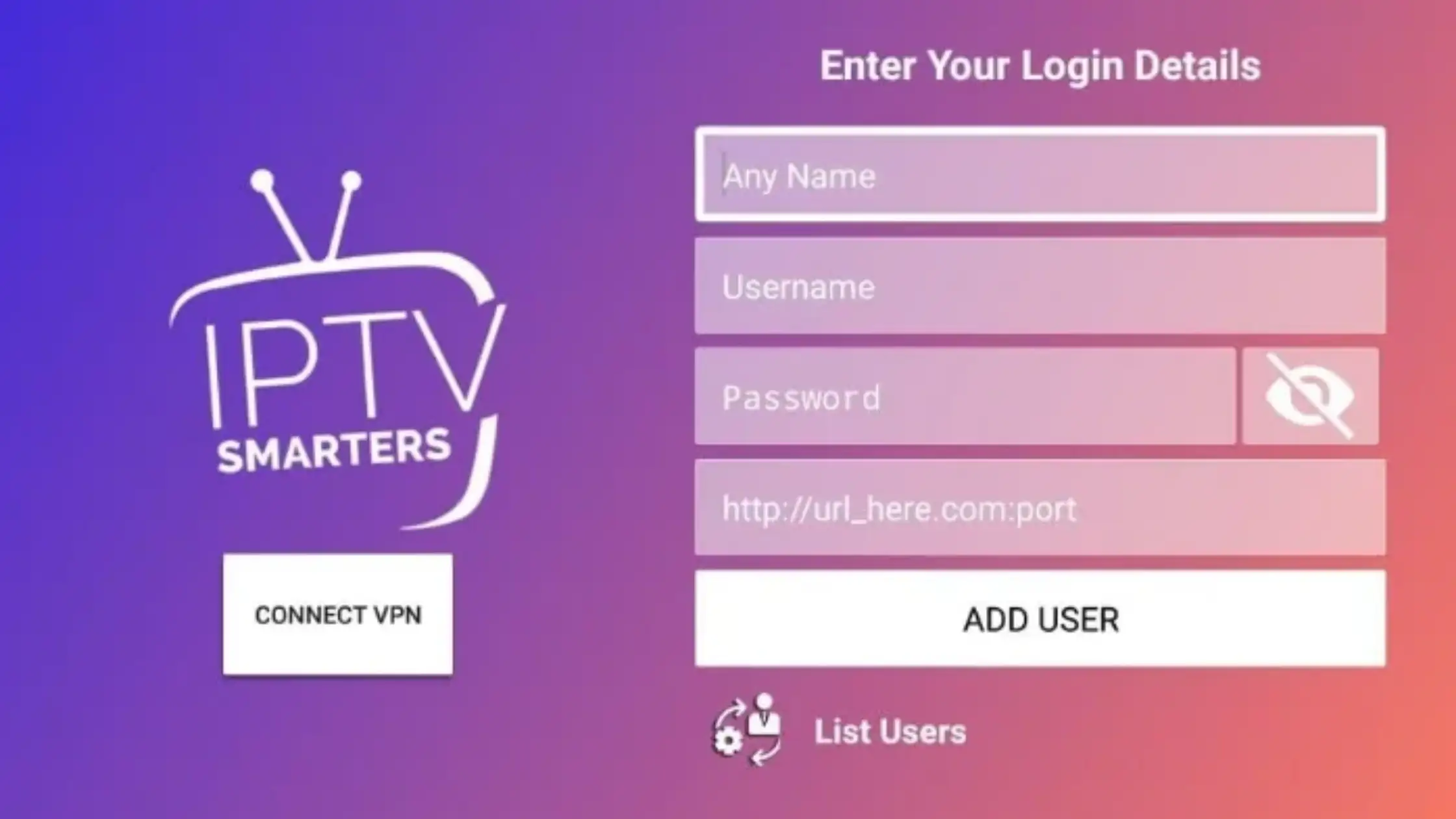
Login to IPTV
- Tap Add User / Login
- Choose Xtream Codes API
- Enter Username · Password · Server URL
📌 Xtream Codes auto-loads channels, VOD and EPG
4
Start Streaming
- Live TV channels load instantly
- Access Movies, Series, Sports & EPG
💻 Guide 7 of 10
How to Install IPTV on Windows / Mac
🌐 iptvsmarters.com
💻 Windows 7/10/11 & macOS
🔑 Xtream Codes or M3U
🎥 Video Tutorial
How to Install IPTV Smarters on Windows / Mac
📝 Step-by-Step Installation Guide
1
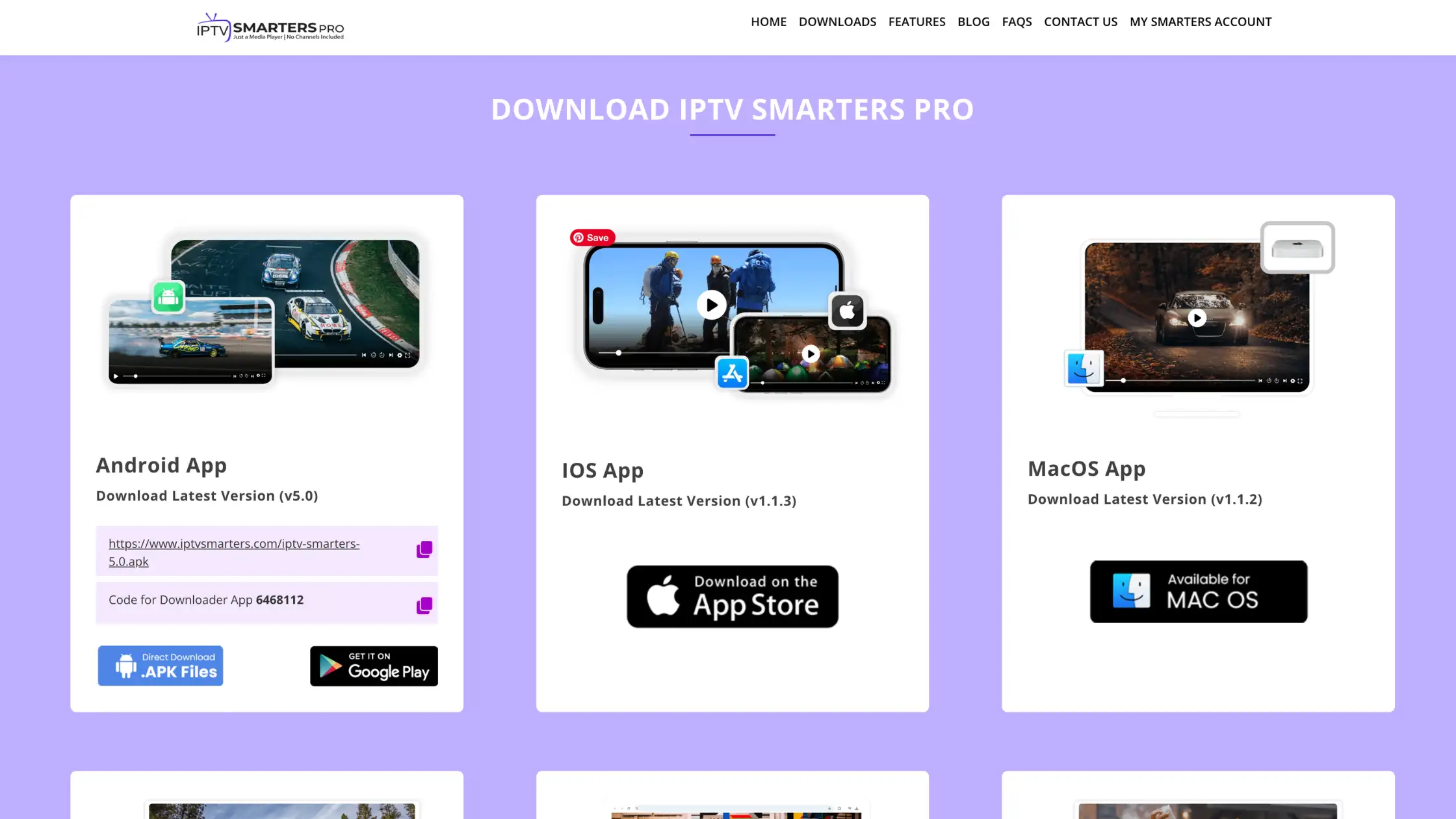
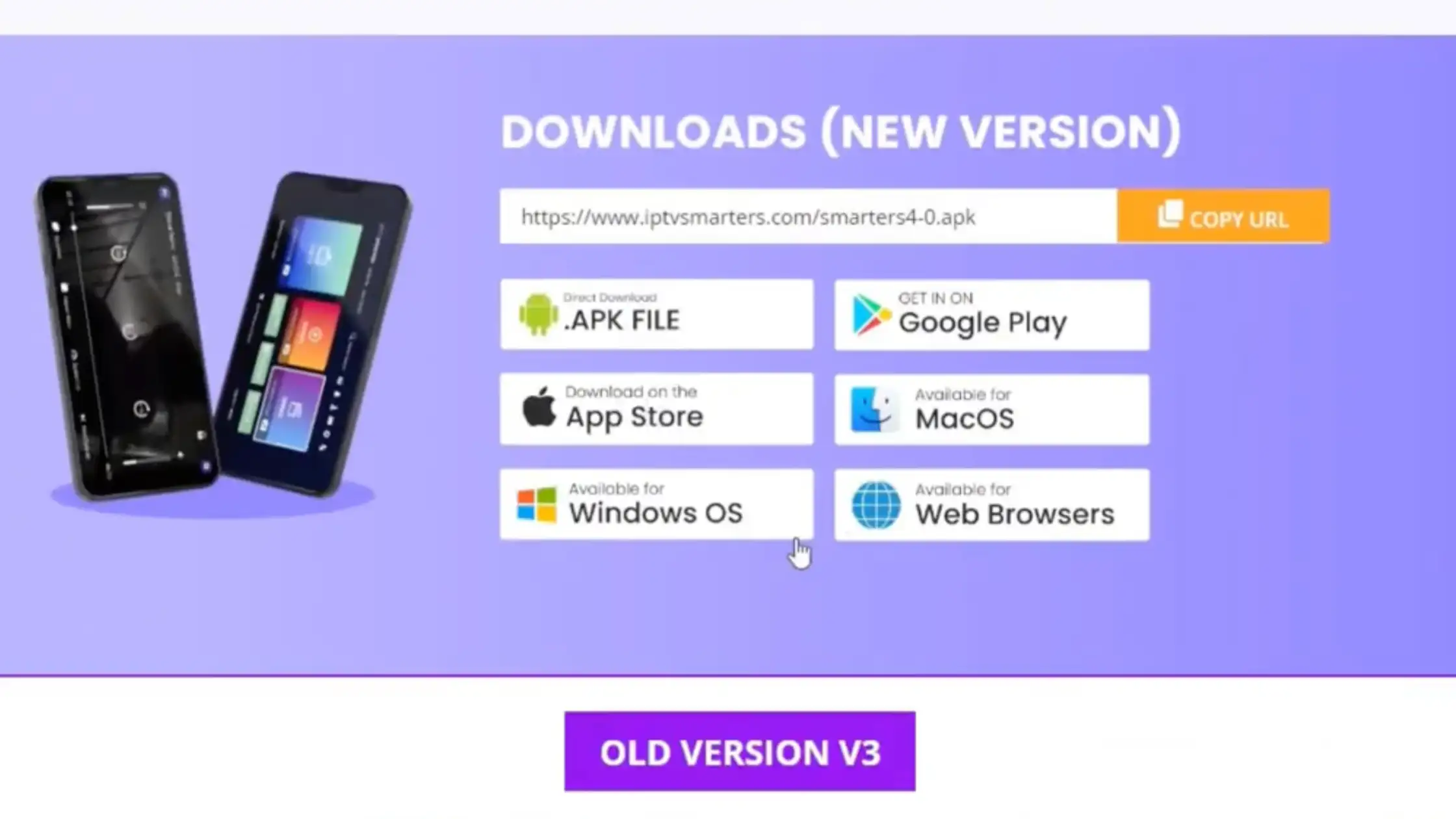
Download IPTV Smarters
- Open Chrome, Edge, or Safari
- Go to iptvsmarters.com
- Choose Windows (.exe) or Mac (.dmg)
- Download the file
📌 Always download from official website for security
2
Install the Application
🪟 Windows:
- Open .exe → Install/Next → launch app
🍎 Mac:
- Open .dmg → drag to Applications → open
📌 macOS may block — use “Open Anyway” in Security Settings
3
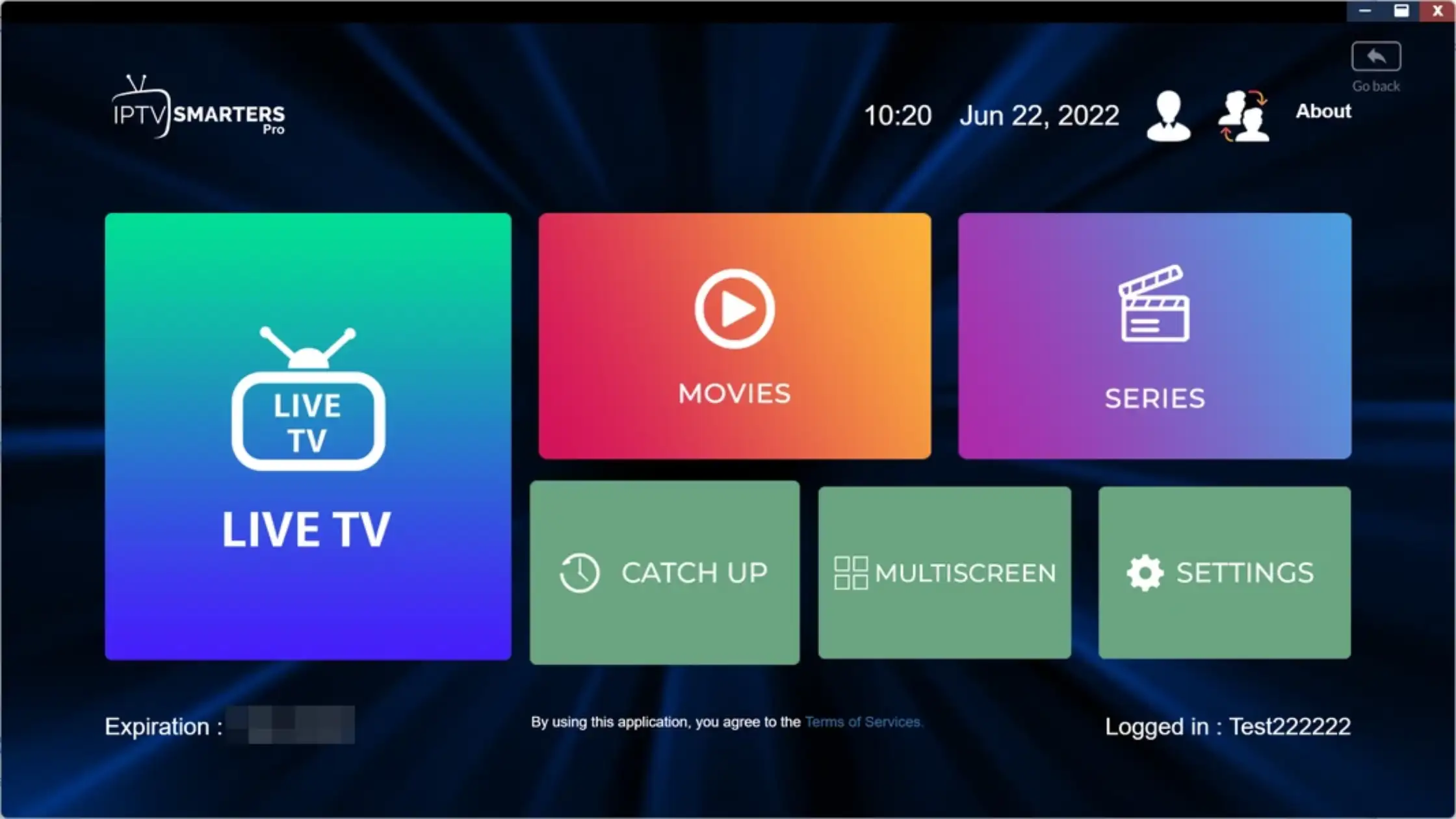
Login & Start Streaming
- Open IPTV Smarters
- Choose Xtream Codes API
- Enter Username · Password · Server URL
- Live TV, VOD and EPG load automatically
📱 Guide 8 of 10
How to Install IPTV on Android Phone
⚠️ Not on Play Store
📦 Manual APK install
🔑 Xtream Codes or M3U
⚠️
IPTV Smarters Pro is not on Google Play Store. You must install manually via APK. This is normal for IPTV apps due to store policies.
🎥 Video Tutorial
How to Install IPTV Smarters Pro on Android Phone
📝 Step-by-Step Installation Guide
1
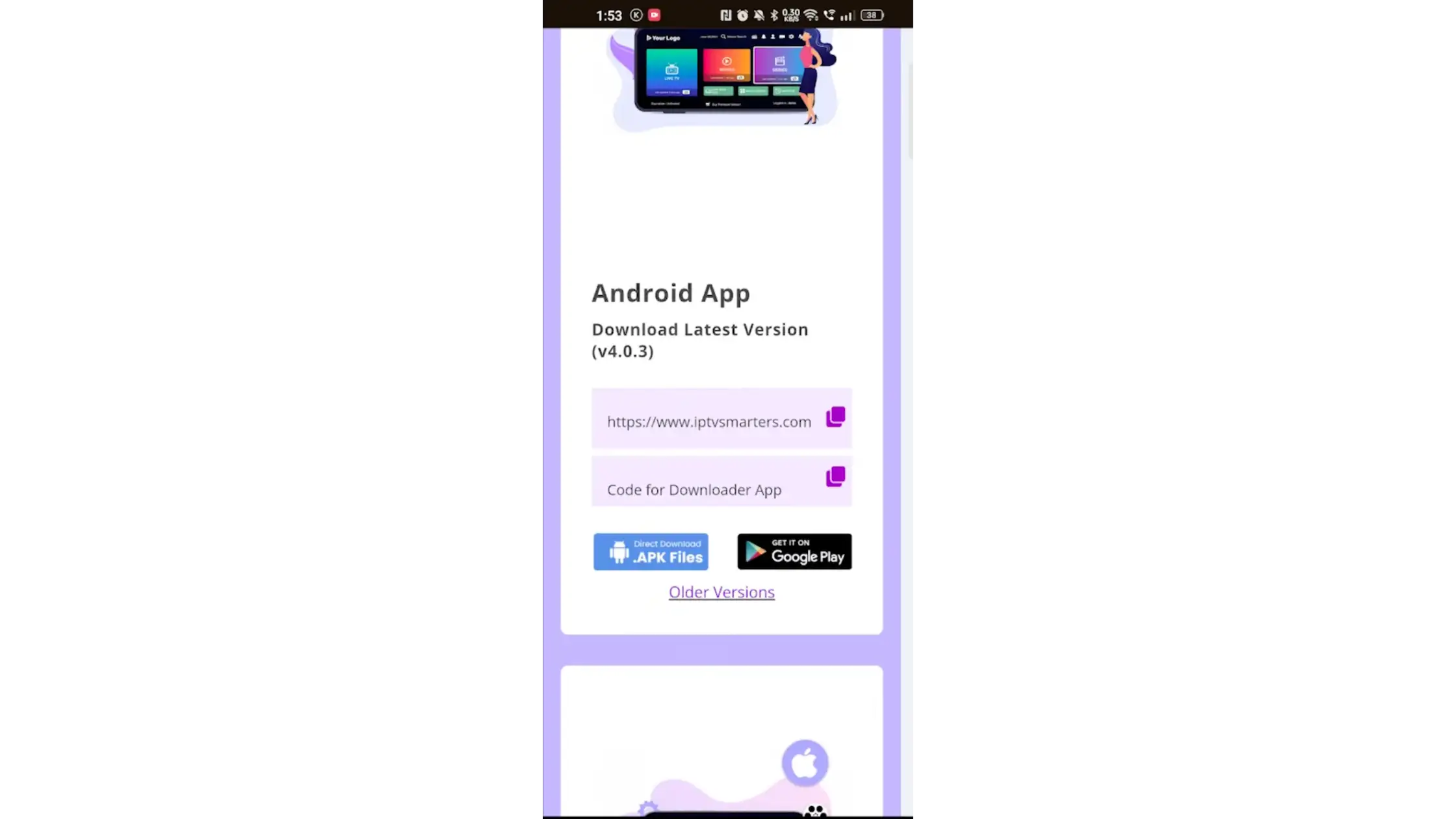
Download IPTV Smarters APK
- Open Chrome browser
- Go to iptvsmarters.com
- Download the APK file
📦 Direct APK download link 📋 copy
2
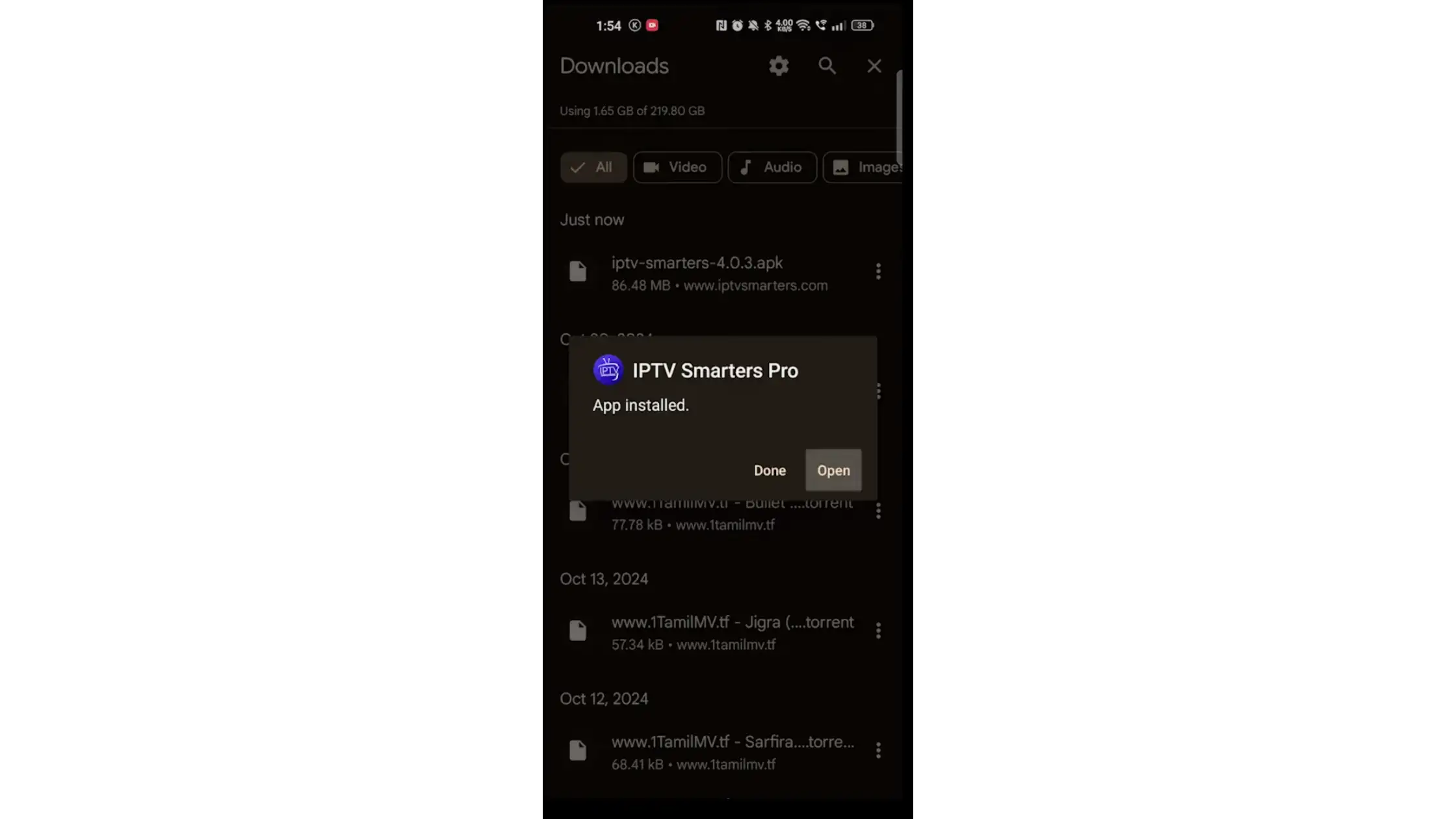
Install the APK
- Open the downloaded APK file
- Tap Install and wait
- Open the app
3
Login & Start Streaming
- Choose Xtream Codes API
- Enter Username · Password · Server URL
- Live TV, VOD & EPG load instantly
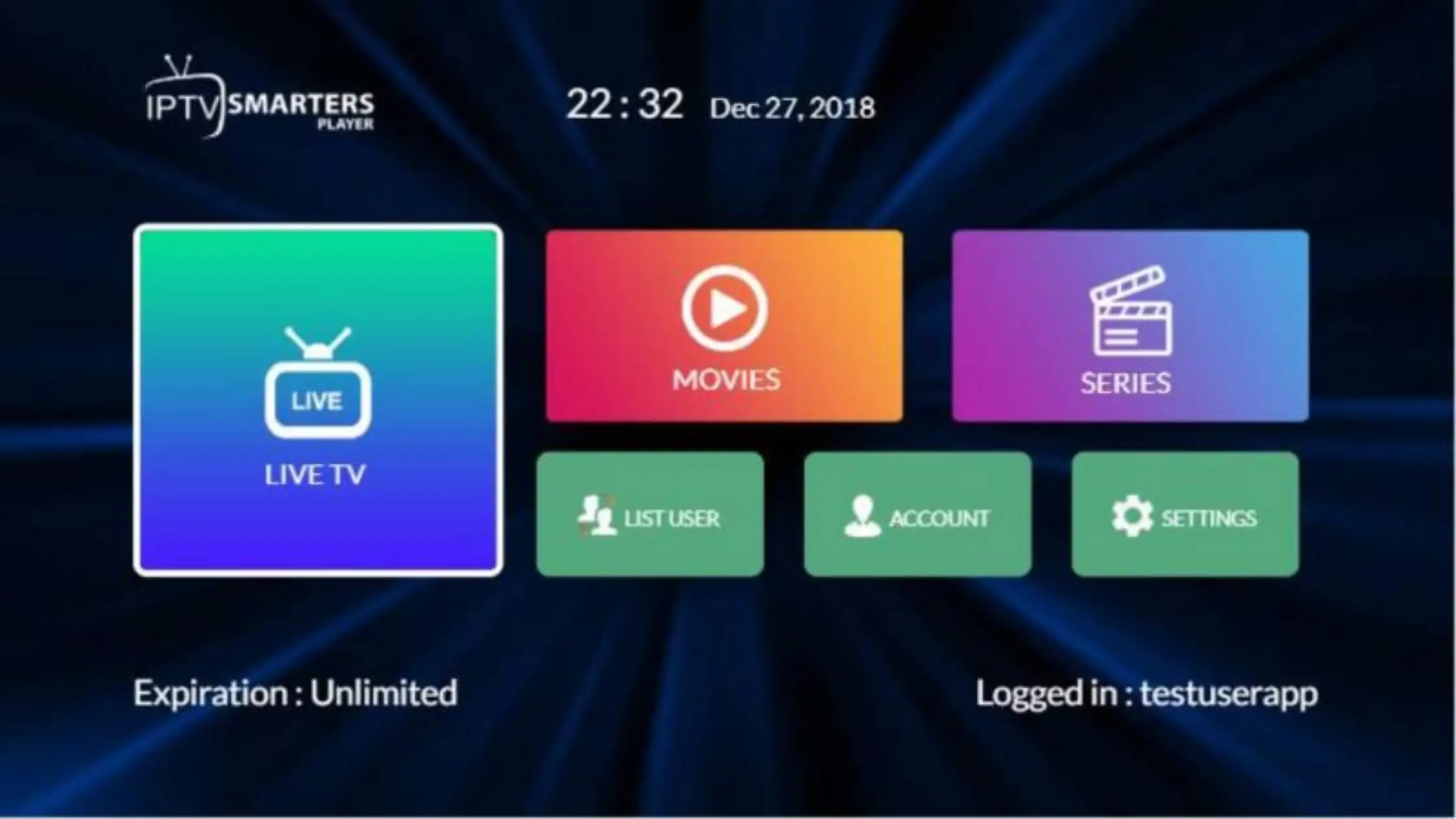

📡 Guide 9 of 10
How to Setup IPTV on BuzzTV
📡 All BuzzTV models
🌐 Portal URL or Xtream Codes
🎥 Video Tutorial
How to Setup IPTV on BuzzTV Box
📝 Step-by-Step Installation Guide
1
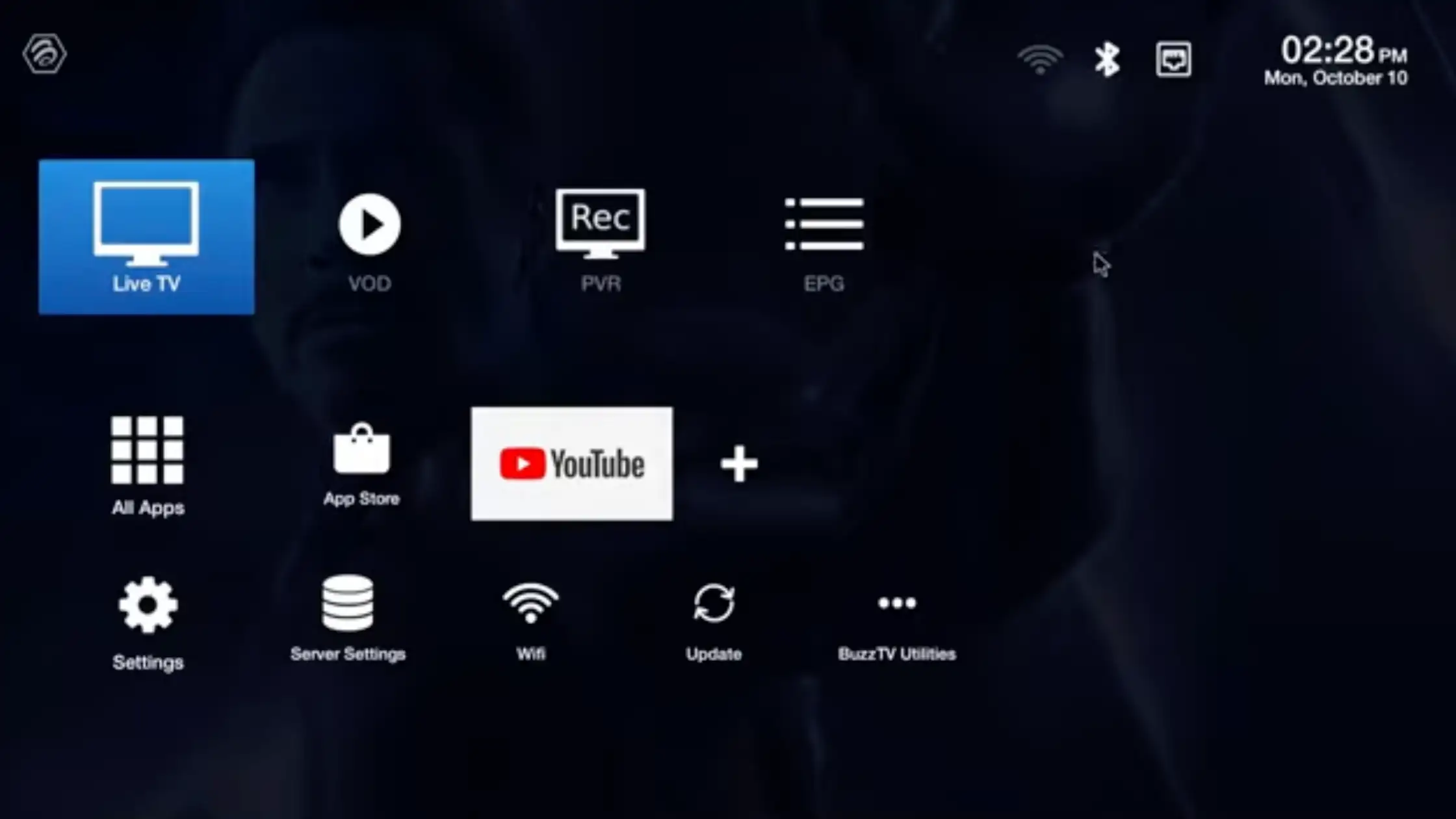
Open BuzzTV IPTV App
- Turn on your BuzzTV Box
- Open BuzzTV IPTV / Live TV app
2
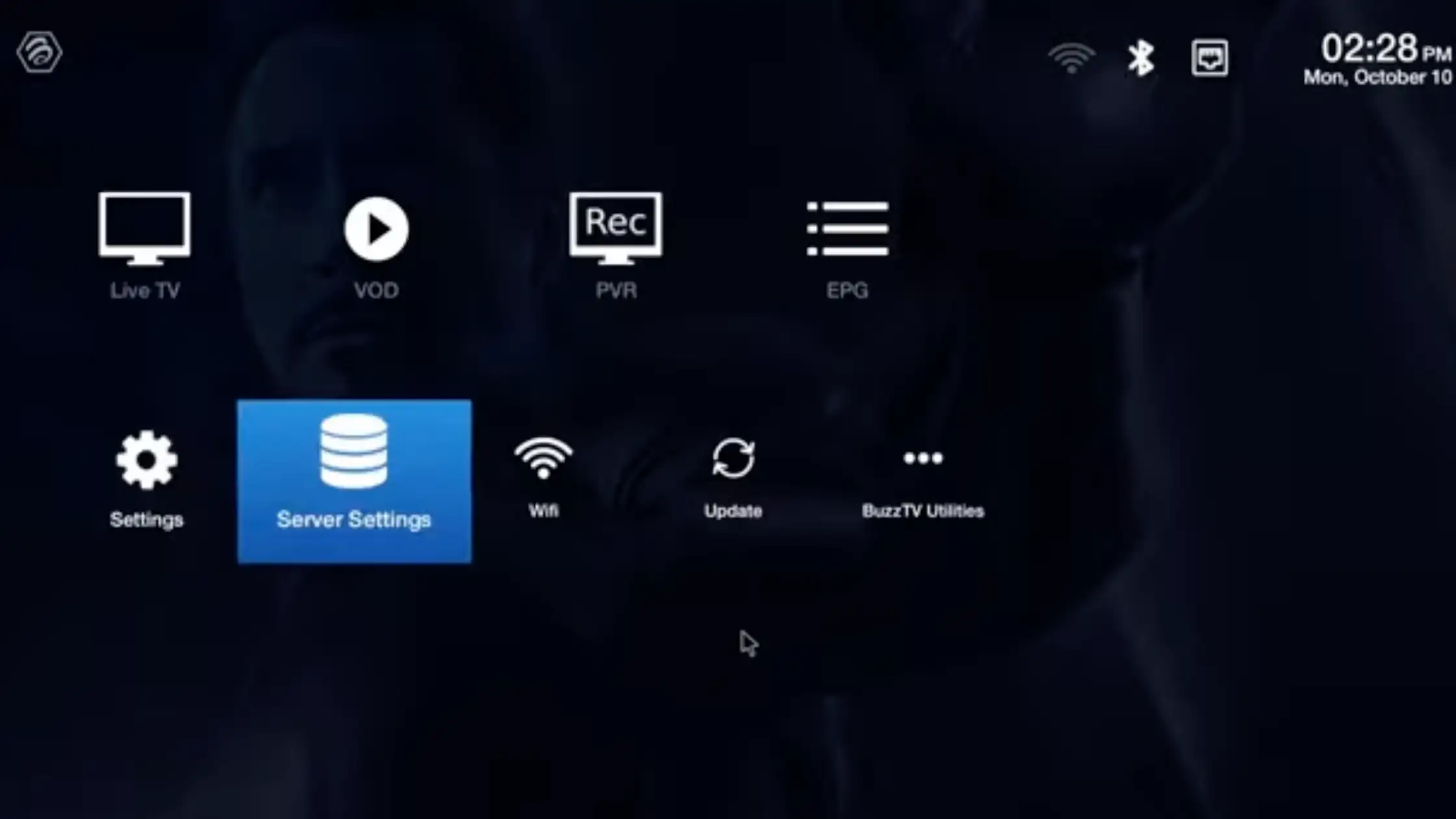
Server Settings & Add Portal
- Open Settings / Server Settings
- Click Add Server / Portal
- Portal Name: StreamEast 4K
- Portal URL: provided after activation
- Click Save
3
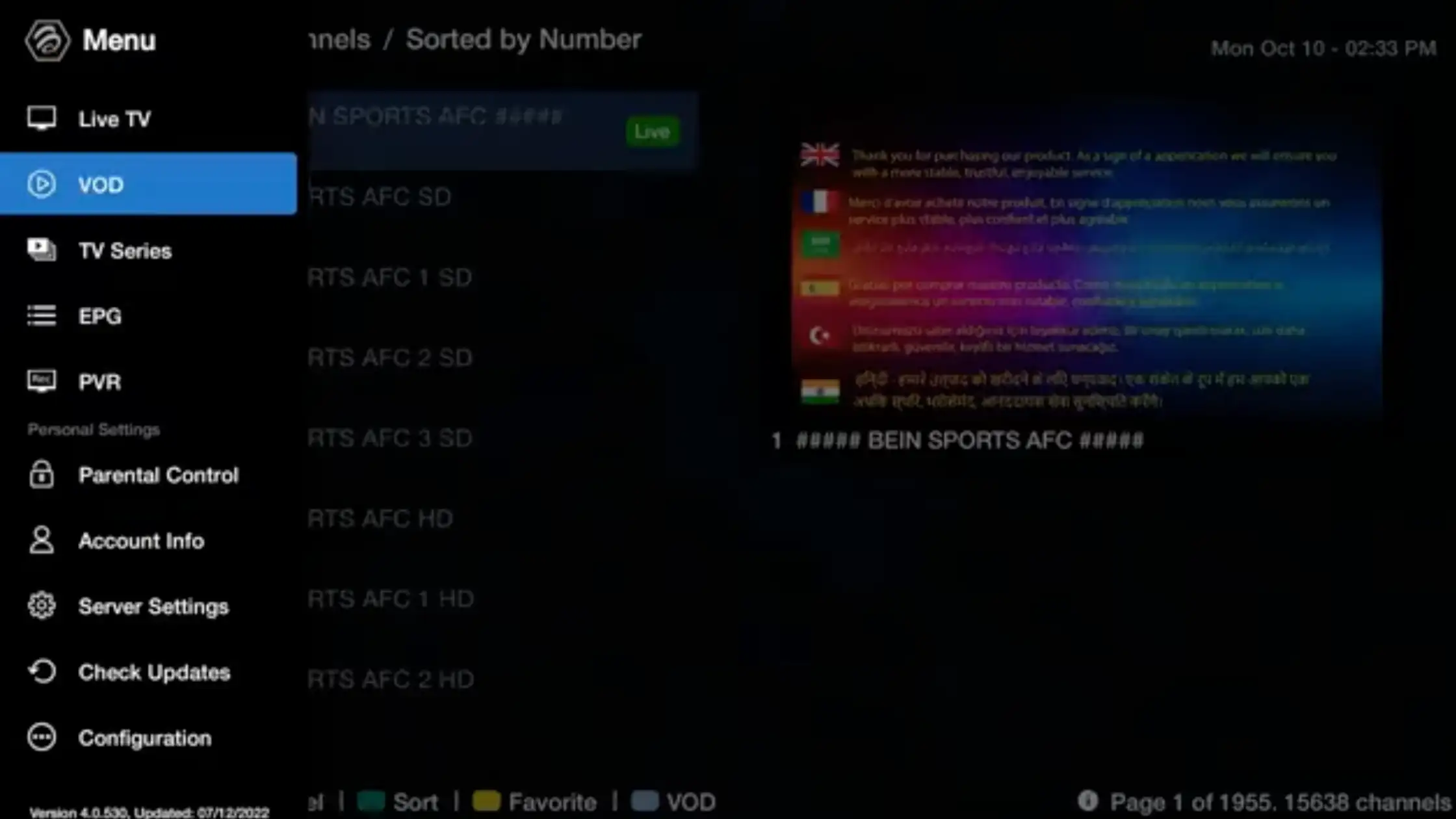
Connect & Load Channels
- Click Connect / Load Channels
- Wait a few seconds
- Access Live TV · Movies · Series · EPG
📦 Guide 10 of 10
How to Setup IPTV on MAG Box
🔑 MAC Address activation
🌐 Portal URL only
❌ No username/password
⚠️
MAG Box uses MAC address activation. No username or password required — share your MAC address with support to receive your Portal URL.
🎥 Video Tutorial
How to Setup IPTV on MAG Box
📝 Step-by-Step Installation Guide
1
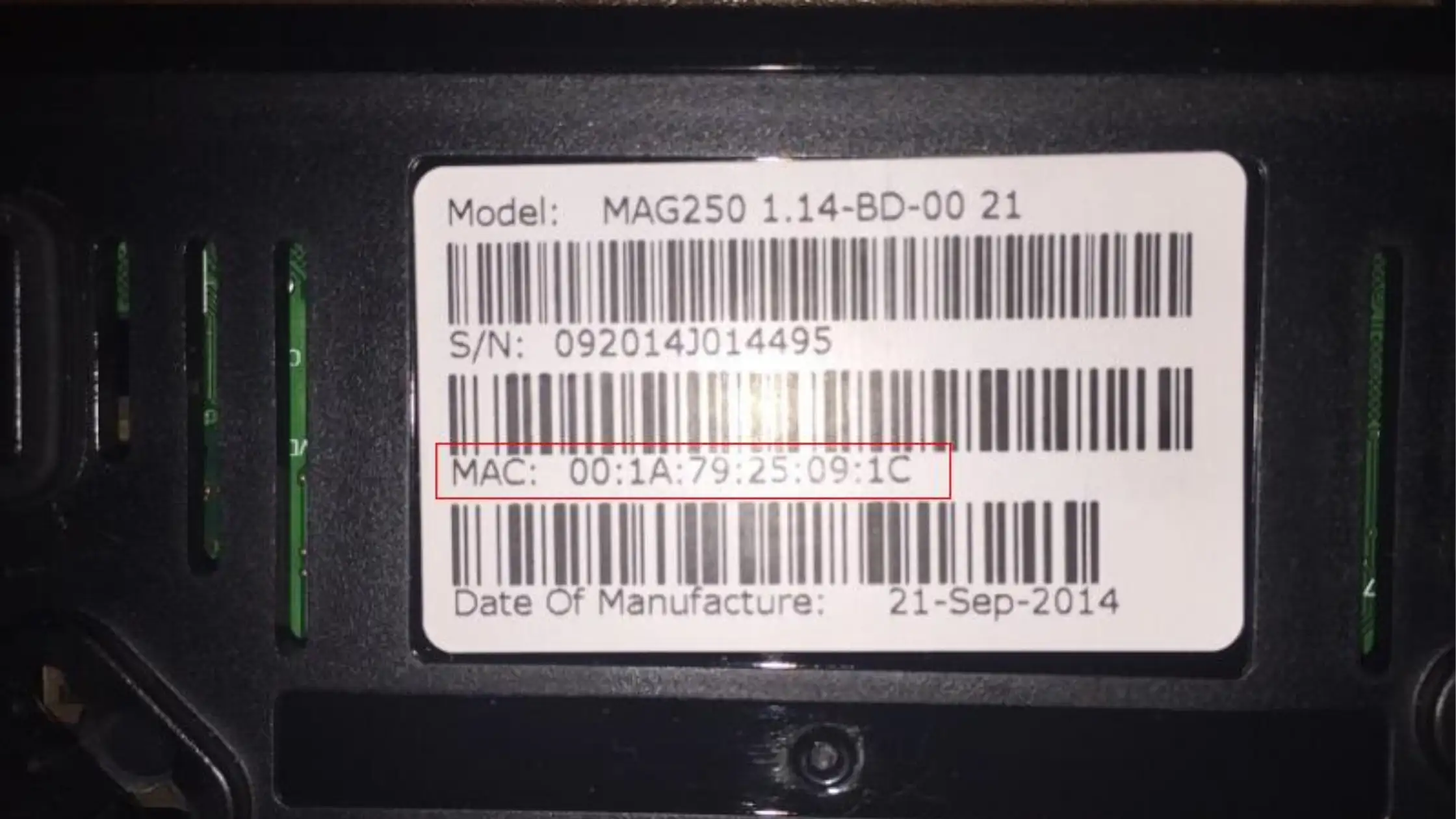
Find Your MAC Address
- Go to Settings → System Information
- Copy MAC address (starts with 00:1A:79:…)
- Send it to StreamEast 4K support
📌 Required to activate your subscription
2
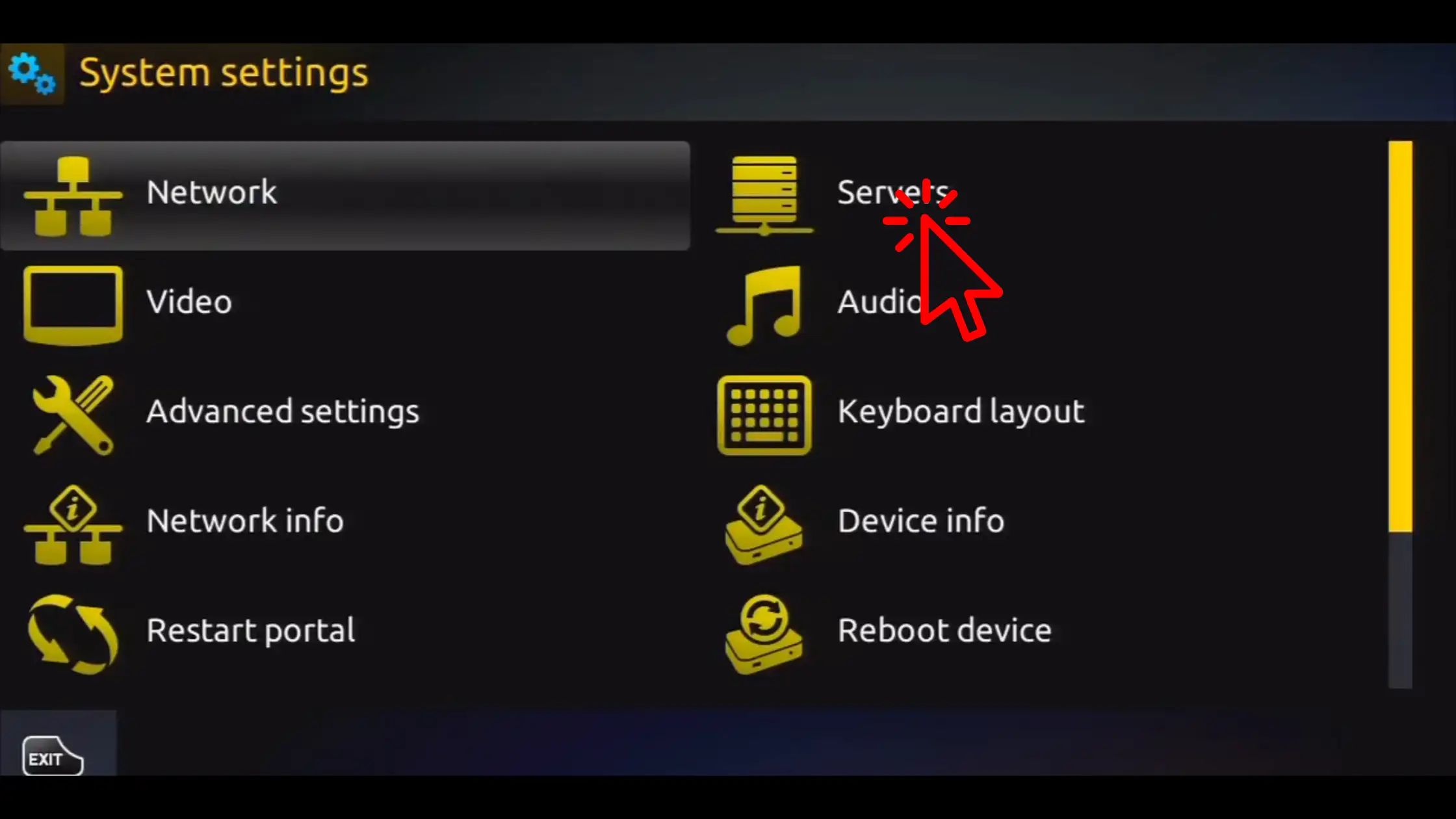
Open Portal Settings
- Go to Settings → System Settings
- Click Servers → Portals
3
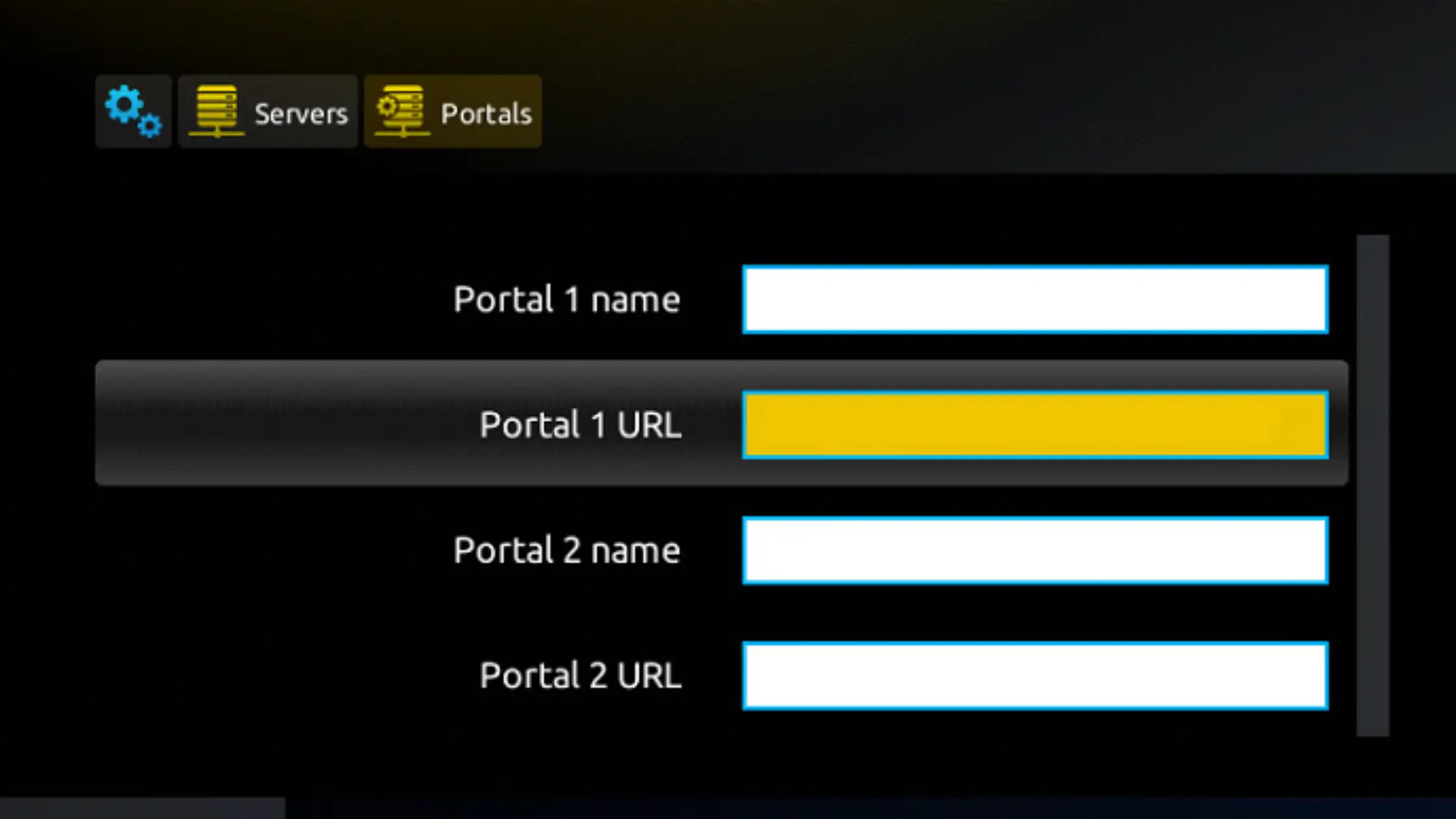
Add Portal URL
- Portal Name → StreamEast 4K
- Portal URL → paste URL from support
- Click Save
4
Restart & Start Streaming
- Restart your MAG Box
- IPTV connects automatically
- Access Live TV · Movies · Series · EPG
❓ FAQ — All Devices
Everything You Need to Know
Before Installing IPTV
Before Installing IPTV
The process depends on your device. Some (FireStick, Android) need an app download, while others (MAG, Formuler) use a portal setup. Use the device tabs above to follow the correct guide for your specific device.
IPTV Smarters Pro is the most recommended — it supports live TV, VOD, and EPG and works on Android, iOS, Smart TVs, and PC. TiviMate is also excellent for Android devices.
Some IPTV apps are not listed due to store policies. You can safely install it using the official APK from iptvsmarters.com.
You need Username · Password · Server URL (Xtream Codes) or an M3U playlist URL. These are provided instantly after you activate your IPTV subscription with StreamEast 4K.
Xtream Codes automatically loads your channels, VOD library, and EPG guide. It’s easier and faster than M3U setup — highly recommended for all beginners and experienced users.
VPN is optional but recommended for better privacy and more stable IPTV streaming — especially during peak hours in Canada.
Yes — depending on your plan. StreamEast 4K subscriptions support up to 5 simultaneous connections across different devices.
Activation is instant after payment. Your credentials are delivered directly via dashboard private chat — start streaming in minutes.
🍁 StreamEast 4K — #1 IPTV Canada
We Don’t Just Offer the Best IPTV Service —
We Deliver the Best Customer Support Too
That’s exactly why thousands of Canadians trust StreamEast 4K. Instant activation, 24/7 support, and a team that’s always here for you — from your very first trial to your 10th renewal.
🎁 Free Trial
Try IPTV Risk-Free
Before You Subscribe
Before You Subscribe
Experience our full service for 36 hours — available every Monday & Thursday. No credit card needed. Same quality as the paid plan.
18,000+ live channels + 130,000+ VOD
HD & 4K streaming — same as paid plan
Instant activation via dashboard
→
💼 Reseller Program
Start Your Own
IPTV Business in Canada
IPTV Business in Canada
Build recurring income selling IPTV subscriptions. No experience needed — just get your panel and your first customer.
Full reseller panel + credit system
Credits never expire — sell at your pace
24/7 dedicated reseller support
→